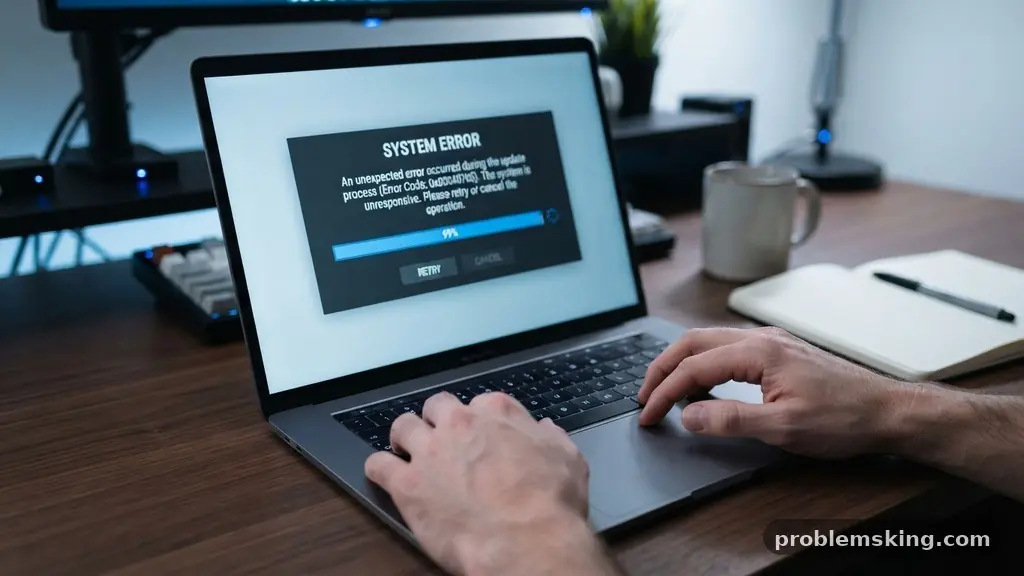
Knowing what to do when a software update fails repeatedly on the same device can save you hours of frustration and potential data loss. When a device refuses to install a new operating system build or security patch, it often signals an underlying issue with storage space allocation or corrupted system files.
Rather than continuously clicking “retry,” you should pause to investigate the root cause, as repeated failure can sometimes lead to boot loops or data corruption. This article provides a structured approach to identifying why your system is stalling and offers actionable steps to resolve these persistent update errors safely.
Immediate Steps for Troubleshooting Update Loops
The first thing you should do when a software update fails repeatedly on the same device is to perform a hard restart. Often, temporary glitches in memory or background process conflicts prevent the installer from executing correctly. A clean reboot clears the RAM and stops any non-essential services that might be locking the system files required for the update process.
After the restart, verify your network connectivity issues. Many users assume their internet is fine because they can browse the web, but updates require a stable, high-bandwidth connection to download large files without interruption. If you are on a weak Wi-Fi signal, the download might reach 99% and then fail due to a checksum mismatch.
Switching from a wireless connection to a wired ethernet cable, if possible, provides a much more stable environment. If you must use Wi-Fi, move your device closer to the router or reset your network hardware. Sometimes, a simple power cycle of your modem and router can clear out packet loss issues that are invisible during normal usage but fatal for a large firmware download.
Checking Storage Space Allocation
Insufficient storage space is the most frequent culprit behind failed updates. Operating systems often require double the amount of space that the update file actually occupies to unpack and verify the new data. If your drive is hovering near capacity, the installer will inevitably crash during the extraction phase.
You should audit your disk usage to ensure you have at least 15% to 20% of your total storage free. Delete large, unnecessary files, move photos to external storage, or uninstall unused applications that consume significant space. On macOS, you can use the built-in Disk Utility to check for file system errors that might be preventing the system from writing new data.
Clearing your temporary cache is another vital step in this process. Files left behind from previous failed attempts can clutter your storage and confuse the installer. Removing these “ghost” files allows the device to start the update process with a clean slate, reducing the risk of a repeat failure.
Identifying Error Codes and Logs
When the system reports an error, it is rarely just a random failure. Most modern operating systems provide specific error codes or log files that indicate exactly where the process stopped. These codes can be searched online to find documented solutions provided by the manufacturer.
For instance, an error related to “firmware integrity” suggests that the downloaded file is damaged or incompatible with your specific hardware revision. In such cases, the only solution is to delete the downloaded update file entirely and force the system to re-download it from the server. This ensures you aren’t trying to install a corrupted package over and over again.
If you are comfortable with command-line tools, you can check the update logs to see if a specific driver or background process is causing the conflict. Often, outdated device drivers are the silent killers of system updates. If the log points to a hardware component, you may need to update those specific drivers manually before attempting the system update again.
Safe Mode and Recovery Environments
If standard troubleshooting fails, booting into safe mode or a recovery mode is the next logical step. These environments load only the most essential services, effectively disabling third-party software that might be causing background process conflicts. By removing the influence of external apps, you create a sterile environment for the update to run.
On many devices, the recovery environment allows you to run a repair on your disk partitions. This can fix corrupted system files that were damaged during a previous, incomplete update attempt. If the system is still failing, the recovery mode might offer an option to “reinstall” the operating system from scratch without wiping your user data.
This is a powerful tool because it replaces the core OS files while leaving your personal documents and settings intact. It effectively bypasses the broken update mechanism by providing a fresh version of the OS. Always ensure you have a full cloud backup or a local clone of your data before attempting these deeper system-level repairs.
Comparing Common Update Failure Scenarios
Understanding the symptoms of your specific update failure can help you choose the right path to resolution. Not all failures are caused by the same issues, and applying the wrong fix can waste precious time. The table below compares the most common scenarios and their primary points of failure.
| Failure Symptom | Likely Cause | Recommended Action |
|---|---|---|
| Stuck at 0% download | Network connectivity issues | Reset router and check DNS settings |
| Download completes, then fails | Corrupted system files | Clear cache and re-download |
| “Insufficient space” error | Storage space allocation | Delete large files or offload data |
| Device hangs at boot after update | Incompatible device drivers | Boot into safe mode and revert drivers |
Addressing Hardware and Battery Health
Sometimes, the issue is not software at all, but the physical state of the device. If your battery health is severely degraded, the system may prevent updates to avoid a sudden shutdown during the installation process. An unexpected power loss while the firmware is being written can “brick” your device, rendering it unusable.
Check your battery status through the system settings to see if it is reporting a need for service. If the battery is failing, the device might throttle performance or block critical tasks like firmware updates. In these scenarios, keeping the device plugged into a power source is mandatory, but sometimes a hardware replacement is the only permanent answer.
Furthermore, ensure that your device is not overheating during the update process. High temperatures can cause the processor to throttle, leading to timing errors that the installer interprets as a failure. Keep your device on a hard, flat surface and away from direct sunlight while the update is processing to ensure optimal hardware performance.
When to Consider a Factory Reset
A factory reset is the “nuclear option,” and it should only be used after all other methods have failed. If you have tried safe mode, cleared your cache, and verified your hardware, there may be deep-seated corruption in the OS that cannot be repaired. A full wipe restores the device to its original out-of-the-box state.
Before taking this step, you must verify that your cloud backup is current and complete. A factory reset will erase everything on the internal drive, including your photos, documents, and local application data. Once the reset is complete, you can perform the update immediately before migrating your data back onto the device.
This approach is highly effective because it eliminates any software conflicts that may have accumulated over years of use. While it is time-consuming to set everything up again, it often results in a faster, more responsive system. It is the most reliable way to guarantee that the update will install without interference.
Frequently Asked Questions
Why does my device say it has enough space but still fails the update?
Often, the system needs extra “headroom” to expand compressed files during installation. Even if the update file itself is small, the installation process requires significant temporary space. If your drive is near full, the system may fail to initialize the installation files correctly.
Is it safe to force a restart while an update is installing?
Generally, you should never interrupt an installation. However, if the device has been frozen on a progress bar for several hours, a hard restart is often your only choice. Always ensure the device is plugged into power to minimize the risk of the system becoming unresponsive.
Can third-party antivirus software block updates?
Yes, some aggressive security software can flag update components as suspicious and block them. If you are experiencing repeated failures, try temporarily disabling your antivirus or firewall to see if the update proceeds. Remember to turn it back on immediately once the update finishes.
What if the update fails even after a factory reset?
If you have wiped the device and it still fails to update, you may be dealing with a hardware failure. This could involve a faulty storage chip or a failing motherboard component. In this case, you should contact the manufacturer’s support team for a professional diagnostic.
Does the order of updates matter?
Yes, some systems require you to install minor updates before a major version jump. If you have skipped several updates, the system might be struggling to bridge the gap. Try installing any available smaller patches first to see if they clear the path for the larger update.
Maintaining System Stability Long-Term
To prevent future issues, adopt a habit of performing regular maintenance. Clearing your cache every few months and keeping your storage usage well below the maximum capacity will make future updates much smoother. It is also wise to keep your essential device drivers updated independently of the main operating system.
When you know what to do when a software update fails repeatedly on the same device, you stop viewing these events as catastrophes and start treating them as manageable technical tasks. By following the steps outlined here, you can resolve the majority of update-related issues without needing professional help.
If you ever find yourself stuck, remember to take it slow, back up your data, and address the most likely culprits first. Keeping your software current is the best way to ensure your device remains secure and functional for years to come.