When you find yourself waiting minutes for a file that should take seconds to transfer, the frustration is immediate and understandable. Accurately diagnosing slow file transfers between two devices on the same network often requires moving beyond simple guesses and into structured testing. By looking at your hardware, the protocol overhead, and external environmental interference, you can pinpoint exactly where the data stream is choking.
This process involves checking everything from physical cable integrity to software settings that govern how your devices communicate. With a methodical approach, you will identify the specific bottleneck, whether it is a failing router, a congested wireless channel, or an inefficient file sharing protocol, restoring your network to its expected performance levels.
Understanding Network Throughput and Bottlenecks
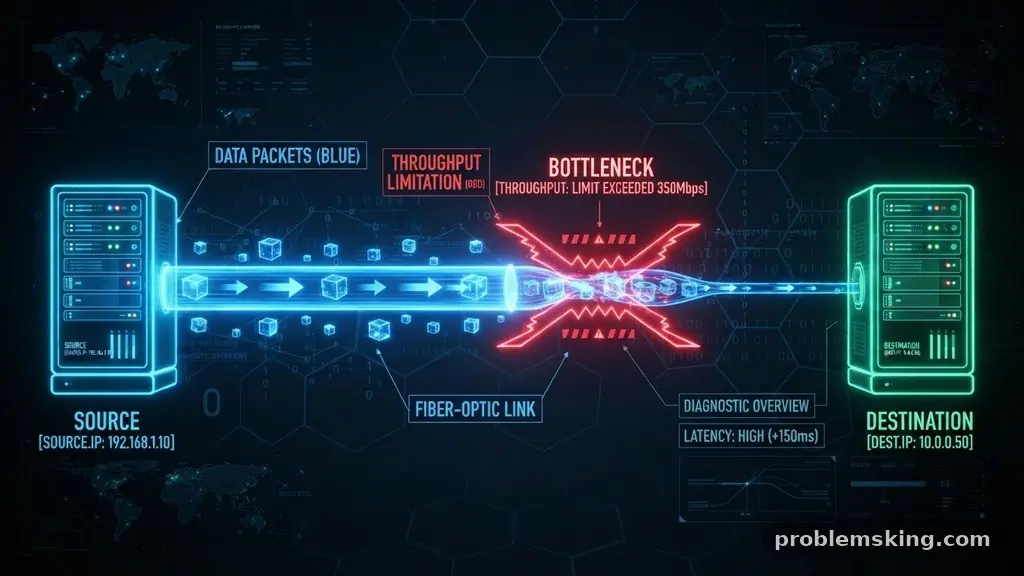
The first step in diagnosing why your data moves slowly is to understand that network throughput is rarely a straight line. Your maximum speed is always governed by the slowest link in the chain connecting your two devices. If you are using a gigabit ethernet switch but one device is connected via an older 100Mbps adapter, your transfer speed will never exceed that lower threshold.
You must identify whether the limitation is physical, such as a damaged cable, or logical, such as a congested switch port. A network interface controller (NIC) might also be misconfigured, forcing a device to operate at half-duplex mode when it should be at full-duplex.
Checking the link speed in your operating system’s network settings is the quickest way to verify if your hardware is negotiating the correct connection speed. If the OS reports 100Mbps when you have gigabit equipment, your cable or the port itself is likely the culprit.
Testing Raw Bandwidth with iperf3
To strip away variables like file system overhead, you should use iperf3 to measure raw network performance. This tool allows you to send test traffic directly between two machines without the influence of hard drive read/write speeds. By running one device as a server and the other as a client, you can see the maximum possible throughput your network path can sustain.
If iperf3 reports speeds close to your theoretical limit—such as 940Mbps on a gigabit connection—then your network infrastructure is healthy. If the numbers are significantly lower, you have a physical or configuration issue within the network path itself.
This diagnostic step is essential because it isolates the network layer from the application layer. If the network tests fast but file transfers remain slow, you know the issue lies in the software or the file system.
The Impact of Wireless Interference
If you are transferring files over Wi-Fi, your environment is likely the source of the slowdown. Signals must travel through walls, furniture, and other electronic devices, all of which introduce latency and packet loss. Even if your signal strength shows as “full,” wireless interference from neighboring networks or appliances like microwaves can cause the airtime to become saturated.
Switching to a less congested channel or moving to the 5GHz or 6GHz bands can drastically improve stability. Wi-Fi 6 technology helps by managing traffic more efficiently, but it cannot fix issues caused by physical distance or massive obstructions. If you frequently move large files, it is almost always better to use a wired connection to avoid the inherent instability of radio frequencies.
Analyzing Latency and Packet Loss
Latency is the time it takes for a data packet to travel from one point to another, and even small amounts can ruin file transfer speeds. High latency often leads to issues with the TCP window size, which is the amount of data a sender can transmit before waiting for an acknowledgment. If the window size is too small for the existing latency, the connection will constantly pause to wait for confirmation.
You can check for basic connectivity issues by using the ping command to look for dropped packets. A stable connection should have zero packet loss and a consistent round-trip time.
If you notice spikes in ping times or frequent timeouts, your router might be struggling to process the traffic or there may be a faulty cable in the path. Using traceroute can also help identify if the traffic is being routed through an unexpected intermediary device.
Evaluating the SMB Protocol and File System Overhead
The SMB protocol is the standard for file sharing in Windows environments, but it can be notoriously chatty. Every time you open or copy a file, the protocol performs a series of handshakes and status checks that add overhead. When transferring thousands of small files, this overhead becomes the dominant factor, making the transfer feel much slower than it should be.
File system overhead also plays a significant role when you are moving data between different drive types. Moving files from an NVMe SSD to a slow mechanical hard drive will always be limited by the write speed of the destination disk.
You can often improve performance by compressing multiple small files into a single archive before starting the transfer. This reduces the number of individual operations the SMB protocol must manage, allowing for a more consistent data stream.
Comparing Common Transfer Methods
Different transfer protocols handle data differently, and choosing the right one for your needs can change your results. The table below outlines how various methods typically behave in a home or office network environment.
| Transfer Method | Best For | Performance Profile |
|---|---|---|
| SMB/CIFS | Windows file sharing | High overhead with many small files |
| FTP/SFTP | Remote file management | Consistent but adds encryption delay |
| HTTP/WebDAV | Web-based access | Good for large single files |
| NFS | Linux/Unix systems | Low overhead, high speed |
DNS Resolution and Network Configuration
Sometimes the problem is not the network speed itself, but the time it takes to find the destination device. If your computer takes a long time to resolve a network name, the transfer might hang before it even begins. Ensuring that your devices are using a reliable internal DNS server or using static IP addresses for your main file servers can eliminate these delays.
Check that your network interface controller settings match the capabilities of your switch. Sometimes auto-negotiation fails, and manually forcing the speed to 1000Mbps full-duplex can resolve a persistent bottleneck.
Additionally, ensure that your router is not running out of memory or CPU cycles while handling traffic. A reboot of your network hardware is a simple but effective way to clear out stale routing tables and temporary cache files.
Common Diagnostic Checklist
When you are in the middle of troubleshooting, it is easy to miss the basics. Use this list to verify that you have covered the most frequent causes of network performance degradation.
- Verify that all cables are Cat5e or better and are not pinched or damaged.
- Ensure that both devices are connected to the same subnet to avoid unnecessary routing.
- Disable any third-party antivirus software temporarily to see if it is scanning incoming files in real-time.
- Check that both machines have the latest network drivers installed from the manufacturer.
- Confirm that the destination drive has enough free space, as nearly full drives often suffer from massive performance drops.
- Close any background applications that might be consuming bandwidth, such as cloud synchronization tools.
Frequently Asked Questions
Why does my transfer speed start fast and then drop significantly?
This is usually caused by the exhaustion of the buffer or cache. When you start a large transfer, the OS uses the available RAM as a fast temporary storage, but once that fills up, the speed is limited by the actual write speed of your disk or the network’s sustained throughput.
Does the number of files affect transfer speed?
Yes, heavily. Moving one 10GB file is much faster than moving 10,000 files totaling 10GB because each individual file requires the system to open, copy, and close it, which triggers significant protocol overhead and file system management tasks.
Can a bad router cause slow transfers even on wired connections?
Absolutely. If the internal switching fabric of your router is failing or if it is being overwhelmed by other traffic, it will drop packets and force retransmissions. This creates a bottleneck that slows down all traffic passing through it.
Is my antivirus software slowing down my transfers?
It can be, especially if your antivirus is configured to perform an “on-access” scan of every file being written to the disk. You can test this by temporarily disabling the real-time protection feature to see if the transfer speeds improve.
What is a good way to test if my hardware is the problem?
The most reliable method is to connect both computers to the same unmanaged gigabit switch with new, high-quality ethernet cables. If the speeds are still slow in this isolated environment, you know the issue is with the devices themselves rather than the rest of your network.
Final Thoughts on Troubleshooting
Diagnosing slow file transfers between two devices on the same network is a process of elimination that rewards patience and logic. By isolating the network path, testing raw throughput, and checking for common software overheads, you can solve most performance issues without needing expensive hardware upgrades. Remember that the goal is to identify the weakest link, whether that is a faulty cable, a congested Wi-Fi channel, or an inefficient file protocol.
Once you find that bottleneck, the fix is usually straightforward. If you continue to face issues, consider documenting your findings and checking the support forums for your specific network hardware, as specific firmware bugs can sometimes be the hidden cause of otherwise unexplainable slowdowns.