Facing the frustration of silent audio when you need to check when Bluetooth headphones connect but produce no sound is a common technical hurdle. Often, the connection status indicator shows a successful link, yet your music or calls remain stubbornly silent. This issue frequently stems from a mismatch in software settings rather than a hardware failure.
You can resolve most of these connectivity gaps by systematically verifying your audio output selection, checking volume levels, and clearing potential software conflicts. By following a structured troubleshooting approach, you can restore your audio quality and get back to your media without needing expensive repairs or replacements.
Verify Your Audio Output Selection
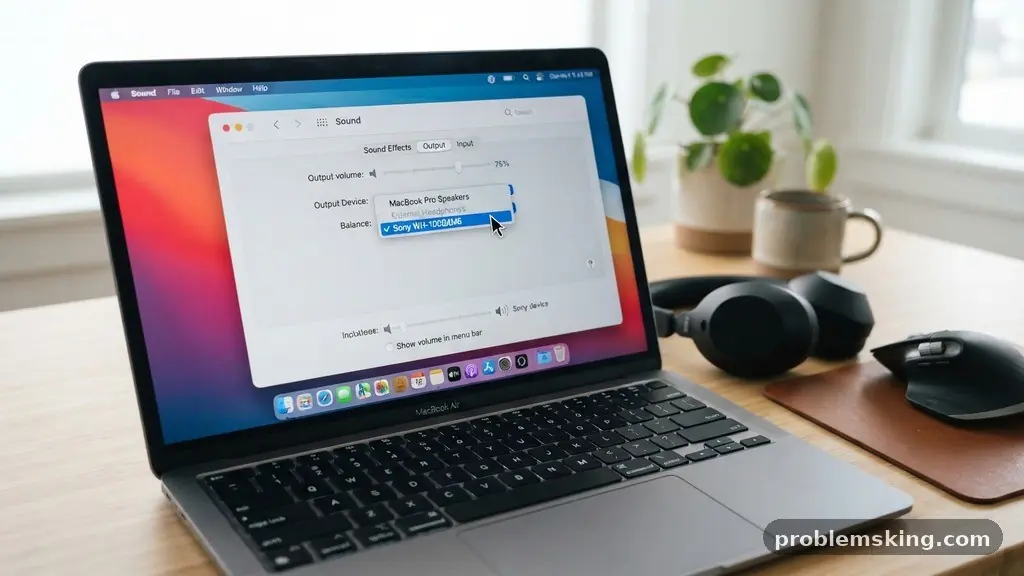
The most frequent cause of silence is that your computer or smartphone is connected to the headphones but is still routing audio to the internal speakers. You must manually verify that your system identifies the headphones as the primary output device.
On Windows, you can click the speaker icon in the taskbar to reveal the sound output menu. Look for your specific device model in the list and ensure it is selected as the active playback target.
On macOS, you should navigate to System Settings and open the Sound pane. Under the Output tab, confirm your Bluetooth device is highlighted.
If you are using a mobile device, check the control center or the media player interface. Many apps have a dedicated icon that allows you to toggle the audio output device directly without entering system-wide settings.
Check Volume Levels and Mute States
It sounds simplistic, but verifying volume levels is a critical step when you need to check when Bluetooth headphones connect but produce no sound. Bluetooth devices often maintain independent volume controls.
This means your phone volume might be at 100%, but the internal amplifier of the headphones could be set to zero. Use the physical buttons on your headset to increase the volume manually.
Additionally, check for software-level muting within the specific application you are using. Streaming services like Spotify or YouTube have their own volume sliders that operate independently of your system volume.
If the master volume is up, but the app slider is dragged to the left, you will hear nothing. Always ensure that the media volume is not muted inside the application window itself.
Reset the Bluetooth Connection
If the connection appears stable but remains silent, the Bluetooth handshake may have encountered an error. A quick way to resolve this is to force the device to re-establish its communication protocol.
Start by toggling Bluetooth off on your host device, waiting ten seconds, and turning it back on. This simple action often clears minor glitches in the Bluetooth stack.
If that fails, you should unpair the device entirely. Navigate to your Bluetooth settings and select “Forget” or “Remove” for your headphones.
Put your headphones back into pairing mode and perform a fresh Bluetooth pairing process from scratch. This clears out corrupted cache files and forces the operating system to re-negotiate the connection parameters with your headset.
Investigate Background Processes and Conflicts
Sometimes, other applications or connected devices can monopolize the audio channel. If you have multiple Bluetooth devices nearby, such as a smartwatch or a secondary speaker, they might be interfering with the audio stream.
Disable Bluetooth on all other nearby gadgets to ensure your headphones have an exclusive, clear connection. You can find more details on troubleshooting these wireless signals through the official Bluetooth technology portal.
Background processes can also lock the audio driver. If a web browser or a video conferencing tool is running in the background, it might be holding the audio output device hostage.
Close all unnecessary applications to see if the sound returns. Restarting your computer or phone is an effective way to kill these rogue background processes and refresh the audio service.
Manage Audio Settings and Enhancements
Modern operating systems often apply “audio enhancements” that can sometimes conflict with Bluetooth hardware. These features, such as spatial audio or virtual surround sound, require specific processing that older headsets may not support. If your headphones are connected but silent, try disabling these extra features in your sound settings.
Furthermore, some systems allow you to toggle between different audio profiles. Ensure your device is using the correct A2DP profile for high-quality audio streaming.
If your device is incorrectly set to a headset profile, it might be waiting for a voice call signal rather than playing media. Checking for a mono audio toggle is also wise, as some accessibility settings can inadvertently route all sound to a single channel or silence it entirely.
Update Device Drivers and Firmware
Outdated software is a common culprit for silent Bluetooth connections. If your computer is running an old set of device drivers, it may not be able to communicate effectively with the latest Bluetooth hardware.
Visit your manufacturer’s website to check for any available firmware update for your headphones. Many modern headsets require a companion app to install these patches.
On a PC, you should also check the Device Manager to see if the Bluetooth adapter needs a driver update. Windows Update occasionally misses specific peripheral drivers, so manual intervention is sometimes required. Keeping your system software current ensures that your computer understands the latest audio codec requirements of your headphones.
Compare Common Connection Issues
When you are troubleshooting, it helps to identify exactly where the communication chain is breaking down. The table below outlines how different components behave when a connection is successful but audio is absent.
| Component | What to Observe | Likely Fix |
|---|---|---|
| System Settings | Device appears but is not selected | Change output to headphones |
| App Volume | System volume is high, but app is muted | Unmute the specific application |
| Bluetooth Stack | Device shows “Connected” but stays silent | Unpair and re-pair the device |
| Audio Drivers | System reports “Driver Error” | Update or reinstall audio drivers |
Check Hardware and Battery Status
Physical hardware limitations can often be mistaken for software errors. If your battery is critically low, some headphones will maintain a Bluetooth connection to inform you of the low power state while disabling the audio drivers to save energy. Ensure your headphones are fully charged before attempting to diagnose complex software issues.
Inspect your charging port and the headset for any physical damage. If the internal circuitry has been compromised by moisture or a drop, the Bluetooth chip might still function, but the audio DAC (Digital-to-Analog Converter) might be dead. Also, consider the following checklist to ensure you haven’t missed a simple physical switch:
- Confirm the physical mute switch on the headphones is not engaged.
- Ensure the headphones are not currently paired to a different device in another room.
- Check if the headphones require a specific proprietary app to be running.
- Verify that the headphone cable, if used in hybrid mode, is fully inserted.
Frequently Asked Questions
Why do my headphones show as connected but play no sound?
This usually happens because the operating system is sending audio to the wrong output device or the media volume is muted within the application you are using. Start by checking your sound output menu in your system settings to ensure your headphones are selected as the active device.
Could signal interference cause silence?
Yes, significant signal interference from Wi-Fi routers or other Bluetooth devices can cause data packets to drop. If the connection is unstable, the audio stream may stop entirely even if the link icon remains active. Move your device closer to your headphones and turn off other nearby wireless electronics to test if the audio returns.
Do I need to update my Bluetooth drivers?
Updating your drivers is a recommended step if you have ruled out simple volume and output settings. If your computer uses an outdated Bluetooth stack, it might fail to interpret the audio data correctly from newer headphone models. Check your computer manufacturer’s support page for the latest driver releases.
Is it possible my headphones are in the wrong mode?
Some advanced headphones have different modes, such as a “call-only” mode or a “gaming” mode that uses a different connection protocol. If your headphones are stuck in a voice-only profile, they may not play high-quality music. Resetting the headphones to their factory defaults usually resolves this mode mismatch.
How do I know if the headphones are physically broken?
If you have tried connecting your headphones to a different source device, such as a friend’s phone or a tablet, and they still produce no sound, the issue is likely internal. A failure of the internal speakers or the DAC is a hardware issue that usually requires professional repair or a warranty replacement.
Resolving audio issues requires a logical process of elimination. By verifying your output settings, checking individual app volumes, and refreshing your Bluetooth pairings, you can usually identify the source of the silence quickly. If you have spent time to check when Bluetooth headphones connect but produce no sound and the issue persists, consider testing the headset on a different device to rule out a hardware defect.
Most of the time, a simple software refresh or a change in your sound output menu will get your audio back on track. If you continue to struggle, reaching out to the manufacturer’s support team with your specific model number can often provide a path toward a permanent solution.