When you find that you cannot access a specific site on your home network, knowing what to do when a website works on mobile data but not on Wi-Fi is essential for restoring your connection. This discrepancy usually points to a configuration issue within your home router or a communication breakdown between your internet service provider and the site’s server.
By systematically checking your hardware and software settings, you can often isolate the culprit in minutes. This article walks you through the most effective troubleshooting steps to resolve these connectivity hurdles, ensuring you can browse your favorite content on any device without relying solely on a mobile signal.
Immediate DNS Settings Verification
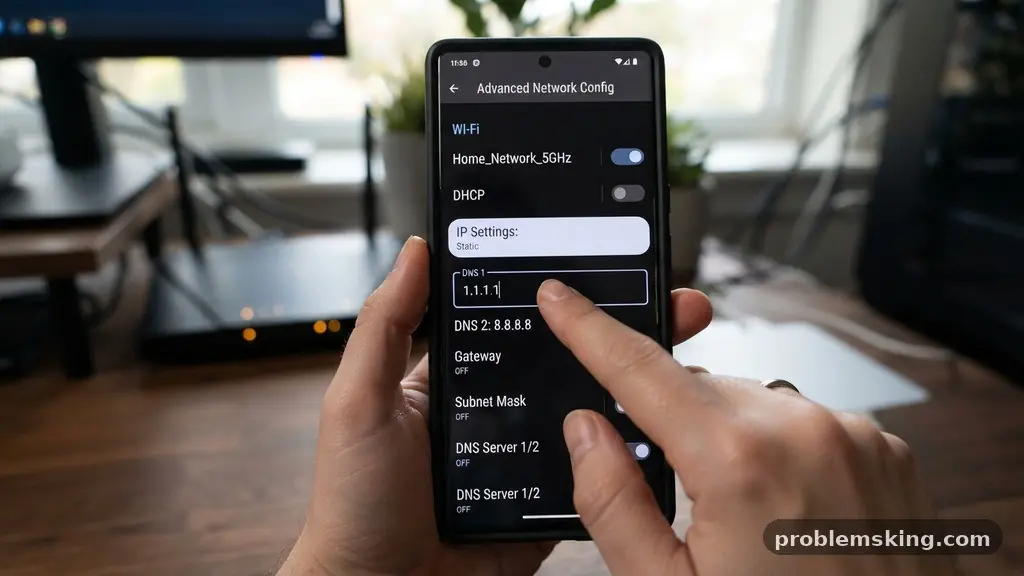
The most common reason for this specific connection issue is a faulty Domain Name System, or DNS, configuration. Your device uses DNS to translate human-readable URLs into the numerical IP addresses that computers use to find each other. If your router’s default DNS servers are struggling to resolve a specific domain, you will see a connection error even though your internet is physically active.
Changing your DNS settings to a more reliable public provider, such as Google Public DNS or Cloudflare, often bypasses this bottleneck. You can perform this change either on your individual device or globally within your router’s administrative interface.
Testing this is simple: temporarily switch your device’s Wi-Fi settings to use 8.8.8.8 as the primary DNS server. If the website loads instantly, you have confirmed that your ISP’s DNS servers were the primary point of failure.
Clearing Browser Cache and Cookies
Sometimes the issue is not with the network at all, but with the data your browser has stored locally. Browser cookies and cached site files can become corrupted, leading to scenarios where a site refuses to load because of an outdated security token or a cached error page. Since mobile data often uses a different network path, it might be fetching a fresh version of the site while your Wi-Fi browser is stuck on a broken local copy.
To rule this out, perform a hard refresh by pressing Ctrl+F5 on Windows or Cmd+Shift+R on a Mac while on the problematic page. If that fails, clear your browser cookies and cache entirely through your settings menu.
This action forces your computer to re-request all files from the server from scratch. It is a non-destructive process that frequently clears up “ghost” connection errors that seem to defy logic.
Addressing IP Address Conflicts
A local area network often relies on the Dynamic Host Configuration Protocol, or DHCP, to assign addresses to devices. Occasionally, two devices may attempt to claim the same IP address, causing the router to lose track of where to route incoming traffic for your machine. This conflict can manifest as intermittent access issues where some sites load fine, but others appear completely dead.
You can resolve this by restarting your router, which forces it to re-assign IP addresses to all connected hardware. Simply power off the unit for at least 30 seconds before plugging it back in.
If the problem persists, you might need to access your router’s dashboard to see if any devices have static IP addresses that overlap with the dynamic range. Ensuring every device has a unique identifier is critical for stable browsing.
Investigating Router Firewall and Security
Your router’s security protocols act as a gatekeeper, but sometimes they are too aggressive. A router firewall might mistakenly flag a website’s traffic pattern as suspicious, blocking the connection entirely. This is more common if you have customized your security settings or if the router firmware is outdated.
Check your router’s administration panel to see if there are any specific content filtering or high-security firewall rules enabled. You can try disabling the firewall temporarily to see if the website becomes accessible.
If it does, you know you need to adjust your firewall’s “allow list” rather than leaving it off permanently. Keeping your firmware updated is also a best practice, as manufacturers frequently patch bugs that cause these exact types of blocking errors.
Managing MTU Size and Packet Fragmentation
The Maximum Transmission Unit, or MTU, defines the largest packet size that can be transmitted over your network. If your router’s MTU is set higher than what your ISP supports, packets may be dropped or fragmented, causing websites to hang or fail to load. This is a subtle issue because some websites handle fragmented packets better than others, which explains why you might access one site but not another.
Most standard connections use an MTU of 1500, but some fiber or DSL connections require a lower value, such as 1492. You can test your optimal MTU size using command-line tools to ping remote servers with specific packet sizes.
If you find that packets are being lost at 1500 bytes, adjusting your router’s WAN settings to a slightly lower value like 1472 often resolves the issue. This technical adjustment is a common fix for “stuck” connections that occur only on specific hardware.
Identifying ISP Throttling and Regional Blocks
Sometimes the problem lies entirely outside your home. ISPs occasionally experience routing issues or regional outages that affect how they connect to specific Content Delivery Networks. If your ISP is experiencing bandwidth congestion or has applied traffic shaping, certain high-traffic websites might be prioritized lower than others.
You can verify if this is an ISP-level issue by using a VPN to tunnel your traffic through a different server. If the website loads perfectly while the VPN is active, the bottleneck is likely occurring at the ISP’s routing stage.
While you cannot “fix” your ISP’s routing directly, using a VPN provides an immediate workaround. You can learn more about how internet connections are managed by reviewing the official FCC Open Internet guidelines.
Common Troubleshooting Comparison
When diagnosing why a site works on mobile data but not Wi-Fi, it helps to compare the symptoms against known failure points. The following table highlights which components are usually responsible based on the behavior observed.
| Symptom | Likely Culprit | Recommended Action |
|---|---|---|
| Site loads on some devices, not others | Local Cache or DNS | Clear cache or flush DNS |
| Site fails on all Wi-Fi devices | Router or ISP issue | Restart router / Check ISP |
| Site loads only when using VPN | ISP routing or blocking | Use VPN or change DNS |
| Site loads, but images/scripts are broken | MTU Size or Firewall | Adjust MTU or Firewall rules |
Frequently Asked Questions
Why does a website load on mobile data but fail on Wi-Fi?
This usually happens because your Wi-Fi network and your mobile carrier use different DNS servers, routing paths, and security configurations. If your local network’s DNS is failing to resolve the site’s address, or if your router’s firewall is blocking the connection, the site will appear unreachable on Wi-Fi while remaining accessible via mobile data.
Can a captive portal cause this issue?
Yes, if you are connected to a public Wi-Fi network, a captive portal might be intercepting your requests. If you haven’t authenticated through the portal’s login page, your traffic will be blocked regardless of whether you have a strong signal. Always check if you need to accept terms of service on a landing page before trying to browse.
Is my MAC address being filtered?
While less common, some networks use MAC address filtering to control access. If your specific device’s MAC address has been blocked or blacklisted in your router’s settings, you will be unable to access the internet or specific sites. Check your router’s “Access Control” or “MAC Filtering” section to ensure your device is listed as allowed.
Should I factory reset my router?
A factory reset should be your last resort. It will wipe all your custom settings, including your Wi-Fi name, password, and port forwarding rules. Try restarting the router and updating its firmware first, as these steps resolve the vast majority of connectivity problems without losing your configurations.
How do I flush my DNS settings?
To flush your DNS on Windows, open the Command Prompt and type “ipconfig /flushdns” then press Enter. On macOS, open the Terminal and enter “sudo dscacheutil -flushcache; sudo killall -HUP mDNSResponder”. This clears the local record of IP addresses your computer has cached, forcing it to look up fresh information from your DNS server.
Summary and Next Steps
Resolving connectivity issues requires a methodical approach, starting with the simplest fixes like clearing your cache and restarting your hardware. By addressing DNS settings, checking for IP conflicts, and inspecting firewall rules, you can typically pinpoint exactly what to do when a website works on mobile data but not on Wi-Fi. Many of these problems are temporary glitches in the way your local network communicates with global servers.
If you have tried all the steps above and the issue remains, consider contacting your ISP to ask if there are known outages in your area. Sometimes, the problem really is outside your control.
For now, keep your device drivers and router firmware updated, and don’t hesitate to use a VPN if you need immediate access to a site that your local network is refusing to load. Dealing with these technical hiccups is part of modern digital life, and you now have the tools to handle them with confidence.