When your phone stays silent despite a flurry of activity, it is natural to wonder why some apps stop sending notifications without warning. This frustrating experience often stems from aggressive power management features or accidental setting changes that throttle how your device interacts with background services. You might find that your email, messaging, or social media alerts simply vanish until you manually open the application.
Fortunately, most of these interruptions are caused by solvable configuration issues rather than hardware failure. By understanding how your operating system prioritizes resources, you can regain control over your incoming alerts and ensure your most important applications remain connected throughout the day.
The Role of Battery Optimization
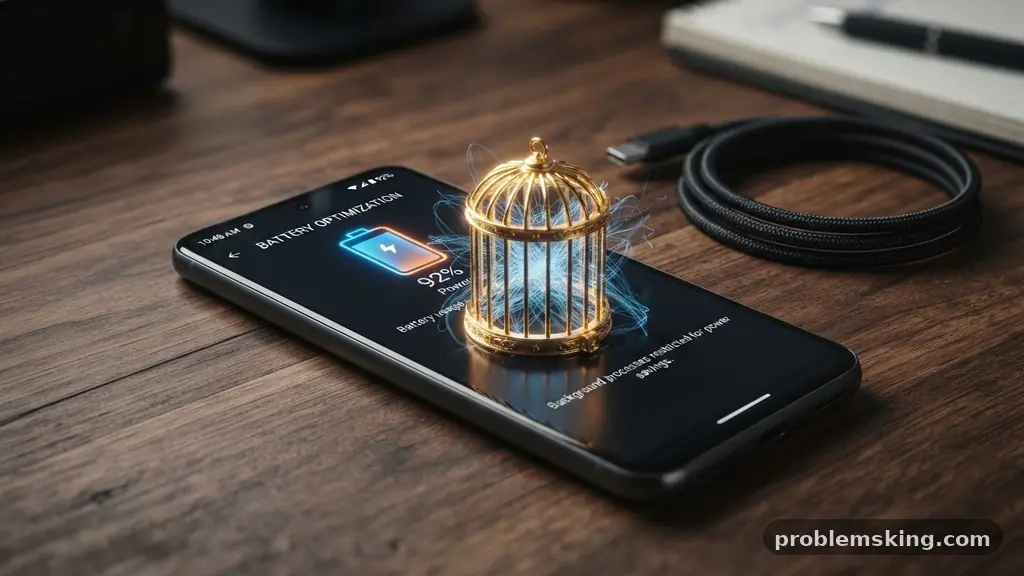
The most common reason for missing alerts is the aggressive nature of modern battery optimization settings. Both Android and iOS are designed to squeeze every minute of life out of your battery by limiting what apps can do when they are not in the foreground.
When a system deems an app to be “low priority,” it restricts that app’s ability to ping the push notification server. This effectively puts the application to sleep, meaning it cannot check for new messages until you physically tap the icon to wake it up.
You can often fix this by navigating to your device’s battery settings and identifying the specific apps that are failing to notify you. On many Android devices, you will see a list of apps labeled as “Optimized” or “Restricted.”
By switching these to “Unrestricted,” you grant the application permission to run background processes whenever it needs to. Keep in mind that this might lead to a slight increase in power consumption, but it is the primary way to stop apps from going silent.
Background App Refresh Restrictions
Background app refresh is a feature that allows applications to update their content while they are suspended. If this setting is disabled globally or for a specific app, the software may lose its ability to fetch new data.
Without this, the app essentially freezes in time once you switch to another task. When the push notification server attempts to send an alert, the app is not ready to process it, and the notification is never delivered to your lock screen.
Check your system settings to ensure that background data usage is allowed for the problematic applications. On iOS, you can manage this by looking at the general settings menu specifically for background refresh.
If you have enabled a “Data Saver” mode, this often acts as a master kill switch that overrides individual app settings. Turning off data saving modes usually restores the flow of information to your device.
Notification Permissions and Focus Modes
Sometimes the issue isn’t the app itself, but rather a global setting that is silencing your device. Focus mode and Do Not Disturb mode are powerful tools, but they are frequently left on by accident.
These modes are designed to filter out interruptions, and they can be configured to block notifications from specific apps or even all apps entirely. If you have set a schedule for these features, they might be turning on automatically during the exact hours you expect your notifications to arrive.
It is also possible that your notification permissions have been revoked during a system update. Occasionally, an operating system update will reset certain privacy toggles, requiring you to re-enable alerts for individual apps. You should navigate to your notification management dashboard to verify that the toggle for the specific app is still active.
- Check if “Do Not Disturb” is active in your control center.
- Verify that “Allow Notifications” is toggled on for the specific app.
- Ensure the app is not set to “Deliver Quietly” or “Silent Mode.”
- Confirm that your device is not currently in a scheduled “Focus” period.
- Check if you have accidentally muted the app’s specific notification channel.
The Impact of Corrupted Cache Data
Over time, an application’s cache data can become corrupted, leading to unexpected behavior. This stored information is meant to help the app load faster, but if the files become mismatched or outdated, the app may struggle to communicate with its server.
This breakdown in communication frequently results in a failure to receive push notifications. Clearing the cache is a non-destructive way to force the app to rebuild its local files without losing your account data or messages.
On Android, you can go to the app information page and select “Clear Cache.” This action is generally safe and does not require you to log back into the account.
If the problem persists, some users find that uninstalling and reinstalling the app provides a clean slate. This process clears out any lingering bugs that might have been introduced during a botched update or a sudden power loss.
Internet Connectivity and Server Issues
Your device requires a stable internet connection to receive real-time alerts. If your Wi-Fi signal is intermittent or your cellular connection is weak, the push notification server might fail to deliver the message to your phone.
While other apps might seem to work, some applications are more sensitive to connection drops than others. If the connection isn’t perfect, the app may time out before it can register the incoming notification.
Furthermore, the issue might lie entirely with the developer’s push notification server. Occasionally, an app developer will experience an outage that prevents their servers from sending alerts to users globally.
You can check sites like Downdetector to see if other users are reporting similar issues with a specific service. If the problem is widespread, there is nothing you can do but wait for the developer to fix the issue on their end.
Operating System Updates and Compatibility
Software updates are intended to improve performance, but they can occasionally create friction between the operating system and older app versions. If you have updated your phone’s software but the app developer hasn’t released a patch to support the new version, you may encounter notification glitches. This is particularly common when major OS releases change how background process restrictions are handled.
Always ensure that you are running the latest version of the app from your official app store. Developers often push “compatibility patches” specifically to address bugs caused by new operating system requirements.
If the app is abandoned or no longer receiving updates, it may eventually stop functioning correctly with modern notification frameworks. In such cases, you might need to look for an alternative app that is actively maintained.
Comparing Common Notification Issues
Different platforms handle background processes differently, leading to varied user experiences. While both Android and iOS aim to save battery, their implementation of background data usage can cause different types of failures. The following table provides a breakdown of how common settings impact your ability to receive alerts.
| Setting Type | Likely Impact on Notifications | Recommended Action |
|---|---|---|
| Battery Saver Mode | High – Heavily restricts background sync | Disable for critical messaging apps |
| Do Not Disturb | Total – Silences all incoming alerts | Check for scheduled activation times |
| App Cache | Moderate – Causes intermittent delivery | Clear cache in app settings |
| Background Refresh | High – Stops app from fetching data | Ensure toggle is set to “On” |
FAQ: Troubleshooting Silent Apps
Why do my notifications only show up when I open the app?
This almost always indicates that the app is being restricted by your phone’s battery management or background refresh settings. Because the app is not allowed to run in the background, it cannot “listen” for new messages until you wake it up by opening it manually.
Do power saving modes affect all apps equally?
Most operating systems apply stricter rules to apps that you haven’t used in a while. If you rarely open a specific application, the system is more likely to completely kill its background processes to save battery, whereas frequently used apps are given more leeway.
Can an update to my phone cause this problem?
Yes, major system updates often change how permissions work or how aggressively the phone manages background tasks. If you notice the problem immediately after an update, check your notification settings again, as they may have been reset to a default state.
Is there a way to prioritize specific apps?
Most modern phones allow you to “lock” or “whitelist” specific apps so they are never killed by battery optimization. Look for “Battery Optimization” or “Background Usage” in your settings to find the list of apps you can exempt from restrictions.
Will clearing data delete my messages?
Clearing the “cache” is safe, but be careful with “clear data” or “clear storage.” Clearing data will often log you out of the app and might delete local content, so only use that as a last resort if you are certain your messages are backed up on the cloud.
Maintaining Reliable Notifications
To ensure your apps continue to function as expected, perform a quick audit of your settings every few months. Start by checking your battery optimization and background refresh permissions, as these are the most frequent culprits. When you notice that some apps stop sending notifications without warning, look for patterns—does it happen only when you are on low battery, or only when you are using a specific Wi-Fi network?
By identifying these triggers, you can adjust your habits or settings to prevent future interruptions. Keep your applications updated, and don’t hesitate to clear the cache if you notice sluggish performance. Staying proactive with your device configuration ensures that you remain connected to the information that matters most to you throughout your day.