When your computer suddenly alerts you that space is running low, finding the cause of unexpected storage usage on a Windows PC often feels like searching for a needle in a haystack. You might have only a few hundred megabytes left, despite not downloading any massive new games or high-definition movies.
This happens because Windows background processes, hidden system files, and accumulated temporary data silently consume your drive capacity over time. By knowing exactly where to look and which tools to utilize, you can reclaim significant amounts of space and stabilize your system’s performance without needing to delete your personal documents or favorite applications.
The Built-in Windows Storage Settings
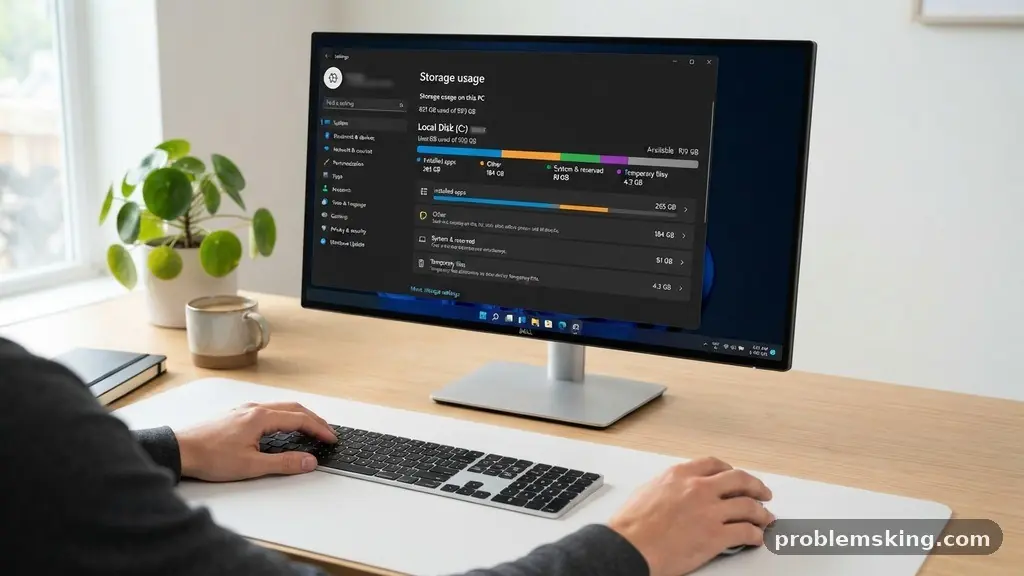
The most straightforward way to start your investigation is by using the native Windows Settings menu. This interface provides a high-level breakdown of how your drive is partitioned between apps, system files, and personal media. To access it, open the Start menu, type “Storage settings,” and select the best match to view your primary drive’s status.
You will see a bar graph representing your drive capacity, color-coded by category. Clicking on specific items like “Installed apps” or “Other” allows you to drill down into the subfolders and programs that are consuming the most space. This is often where users identify “zombie” applications—programs they installed months ago and forgot about, which continue to occupy gigabytes of space.
Utilizing Storage Sense for Automated Cleanup
Windows includes a feature called Storage Sense that helps automate the removal of unnecessary files. When you enable this, the system automatically purges temporary files, empties the Recycle Bin, and cleans out the Downloads folder based on a schedule you define. It is a proactive way to ensure your storage usage does not creep up unexpectedly in the future.
Visualizing Data with Third-Party Analyzers
While the built-in settings are useful, they sometimes lack the granular detail required to find individual massive files. A dedicated space analyzer, such as WinDirStat, provides a visual map of your entire drive. These tools represent every file as a colored block, with larger files appearing as larger squares on your screen.
When you launch a utility like this, you immediately see which directories are the heaviest. If you spot a massive, unexpected block in a folder you rarely visit, you can right-click it to investigate the file path. This is significantly faster than manually clicking through dozens of folders in File Explorer to see which one contains the most data.
Comparing Popular Disk Space Tools
There are several reputable tools available for identifying large file clusters. Choosing the right one depends on whether you prefer a simple list view or a complex graphical representation of your file structure.
| Tool Name | Primary Strength | Best For |
|---|---|---|
| TreeSize Free | Fast, tree-based scan | Quickly finding deep folder paths |
| WinDirStat | Visual block map | Identifying large, unknown file types |
| WizTree | Extreme scanning speed | Users with massive hard drives |
Managing Hidden System Files
Sometimes, the culprit isn’t a file you created, but a system-level component that has expanded beyond its original size. Files like hiberfil.sys and pagefile.sys are essential for Windows to function, but they can occupy tens of gigabytes. The hiberfil.sys file is used for hibernation, while the pagefile.sys acts as a virtual memory extension for your RAM.
If you find that these files are consuming an unreasonable amount of space, you can adjust their settings. For instance, if you never use the hibernation mode, you can disable it via the command prompt to instantly reclaim space equal to your total RAM. Be cautious when modifying these files, as they are critical to system stability and performance.
Clearing Out Temporary and Junk Files
Temporary files are created by software installations, browser caches, and Windows updates that are often left behind long after they are needed. These files accumulate in various hidden directories, such as the Temp folder located inside your AppData path. Running the Disk Cleanup utility is a classic, reliable method to flush these out.
You can initiate this by typing “Disk Cleanup” into the search bar and selecting your primary drive. Make sure to click the “Clean up system files” button to access deeper directories, including old Windows update logs and error reports. These logs can sometimes grow to several gigabytes if they have not been cleared for a long time.
Typical Junk File Sources
* Windows Update Cleanup: Leftover files from previous OS patches.
* Temporary Internet Files: Browser caches that grow with daily usage.
* Delivery Optimization Files: Data used to share updates with other PCs.
* Recycle Bin: Deleted files that still technically reside on the drive.
Identifying Large File Clusters
Beyond system files, your personal data is often the main cause of storage depletion. You might have forgotten about high-resolution video projects, raw image files, or duplicate documents scattered across your disk partition. Using the search function in File Explorer allows you to filter by size specifically.
Type “size:gigantic” into the File Explorer search bar to find files larger than 128MB instantly. This command is a quick way to find the “low-hanging fruit” that is hogging your space. You can also sort your folders by size to see which specific projects or media libraries are the most bloated.
Investigating System Restore Points
System Restore is a safety net, but it creates snapshots of your system state that can be quite large. If your computer is set to create these points frequently, they can quickly consume a significant portion of your drive. You can manage these settings through the “System Protection” tab in your computer’s properties.
By adjusting the “Max Usage” slider, you can limit how much space these restore points are allowed to take up. While it is dangerous to disable protection entirely, reducing the limit can save you several gigabytes of space. Always ensure you have a reasonable amount of space allocated for recovery, but don’t let it grow unchecked.
Checking for Cloud Synchronization Issues
If you use services like OneDrive or Dropbox, you might be experiencing a “sync loop” where files are being downloaded to your computer unexpectedly. Sometimes, a cloud folder is set to “Always keep on this device,” meaning it mirrors the entire contents of your cloud storage on your local drive. This can easily fill up a small SSD if you have a large cloud library.
Check your cloud service settings to see which folders are marked for local offline access. You can often change these to “Online only” or “Files on demand” to free up local space while keeping the files accessible via the internet. This is a common oversight that causes confusion for many users.
Addressing Software and Game Bloat
Modern games and creative software are massive, often exceeding 100GB for a single installation. If you are struggling with space, consider moving your game libraries to an external drive or uninstalling titles you haven’t played in months. Steam and other launchers often have built-in features to move installation folders to different drives effortlessly.
Furthermore, check your “Apps & features” list in Settings periodically. Many applications bundle extra components, such as high-resolution assets or language packs, that you may not need. Removing these optional components can save space without sacrificing the core functionality of your preferred software.
Frequently Asked Questions
Why does my drive show less space than it should?
Windows reports storage in binary, while manufacturers often use decimal, leading to a discrepancy. Additionally, hidden system files like the pagefile and reserved recovery partitions are not always shown in standard folder views.
Is it safe to delete everything in the Temp folder?
Yes, generally it is safe. Windows will prevent you from deleting files currently in use by active programs, so anything you can successfully delete is likely just leftover data from previous sessions.
How do I find hidden files that are taking up space?
In File Explorer, go to the “View” tab and check “Hidden items.” For a more comprehensive look, use a space analyzer tool like TreeSize Free, which will reveal hidden system directories that you might otherwise miss.
Can I safely delete my Windows.old folder?
If you have recently upgraded your operating system, the Windows.old folder contains your previous version. You can safely delete this via Disk Cleanup if you are satisfied with the new version and do not need to roll back.
Why does my storage usage jump back up after cleaning?
This is often caused by automatic updates or browser caches refilling immediately. If you notice this happening daily, check if a specific application or Windows Update is repeatedly failing and creating large log files.
Conclusion
Finding the cause of unexpected storage usage on a Windows PC is a manageable task once you have the right diagnostic approach. By starting with the built-in storage settings and moving toward specialized space analyzers, you can pinpoint the files that are stealthily occupying your drive. Whether it is clearing out redundant system logs, managing your cloud synchronization settings, or purging old software, these steps provide immediate relief for a crowded drive.
Remember that maintaining your storage is an ongoing process rather than a one-time fix. Regularly reviewing your disk health ensures your computer continues to run efficiently, leaving you with enough room for the files that actually matter. If you find your storage filling up again, simply repeat these steps to keep your machine in top condition.