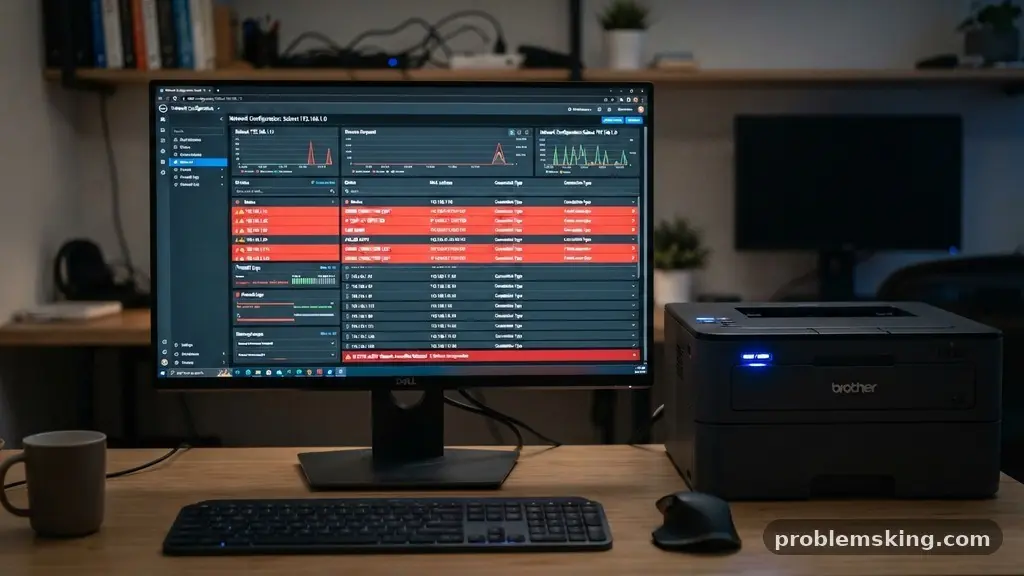
Figuring out what makes a printer show as offline when it is properly connected is a common source of frustration for both home users and office administrators. You have verified the power cables, confirmed the paper is loaded, and ensured the device is linked to your local area network, yet the computer still insists the hardware is unreachable.
This disconnect often stems from subtle communication barriers between your operating system and the printing hardware rather than a total mechanical failure. By addressing specific software settings and network configurations, you can usually restore functionality without needing a technician or a new device.
The primary reason for this persistent status error is a mismatch between the port configuration and the device’s current network identity. Most modern printers use a dynamic IP address assigned by your router, meaning the address can change if the device restarts. If your computer is still trying to send data to the old, abandoned address, it will inevitably report the device as offline.
This is particularly common in environments where DHCP is the default method for managing network devices. Manually setting a static IP address or using a DHCP reservation in your router settings often eliminates this communication gap permanently.
Addressing IP Address Conflicts and Network Discovery
When your operating system loses track of the printer’s location, it flags the device as offline despite a solid physical connection. This frequently happens when the router assigns a new address to the printer after a power cycle, leaving the computer looking for a ghost.
To fix this, you should navigate to your printer’s web interface by typing its current IP address into a browser. Once there, look for network settings to assign a static IP that will not change, ensuring the computer always knows exactly where to send print jobs.
Network discovery settings also play a crucial role in maintaining a stable connection across your infrastructure. If your computer’s network profile is set to “Public” rather than “Private,” the firewall may block the necessary traffic to keep your printer visible.
You can adjust this in the Windows settings under Network and Sharing Center to ensure that file and printer sharing are enabled for your local network. This simple toggle change often resolves the “offline” status immediately because it permits the necessary discovery packets to pass between your workstation and the print server.
Managing the Windows Print Spooler
The print spooler is the background service responsible for managing all print jobs currently waiting in the queue. If this service hangs or crashes, the system will report that the printer is unreachable because the command pipeline has been severed.
You can check the status of this service by opening the “Services” app in Windows and locating the Print Spooler entry. Restarting this service often clears out stuck data packets that were preventing the computer from recognizing the printer’s active status.
If the spooler stops repeatedly, you might have a corrupted print job stuck in the queue that is causing the entire system to freeze. Clearing the spooler folder manually can be a highly effective way to reset the connection.
You would navigate to C:\Windows\System32\spool\PRINTERS and delete any files found inside, as these are the cached jobs waiting to be processed. Once these files are removed, restarting the print service should allow the computer to re-establish a fresh handshake with your hardware.
Configuring SNMP and Bidirectional Support
Bidirectional support is a feature that allows the printer to communicate its status—such as ink levels and error states—back to the computer. When this feature is enabled, the computer expects a constant stream of information to confirm the printer is awake and ready.
If the connection is slightly unstable, the computer might interpret a brief silence as the printer being offline. Disabling bidirectional support in the printer properties can sometimes force the computer to send jobs without waiting for a status ping, bypassing the sensitivity of the check.
SNMP status is another technical setting that can cause the printer to report as offline if the community name string is incorrect or missing. You can verify these settings by right-clicking the printer in your Control Panel and selecting Printer Properties.
Under the Ports tab, clicking “Configure Port” will show you whether SNMP status is enabled. If it is enabled but the printer is not responding to these specific queries, turning off the SNMP check can often trick the computer into treating the printer as always ready.
Troubleshooting WSD Port Assignments
Web Services for Devices (WSD) is a Microsoft protocol that makes it easier to connect network devices, but it is notoriously prone to “offline” glitches. When a printer is installed using a WSD port, the OS relies on complex handshakes that can fail during network fluctuations.
If you find your printer is consistently dropping its connection, it is often better to switch the port type entirely. You can manually add a new Standard TCP/IP port using the printer’s specific IP address instead of relying on the automated WSD discovery process.
This shift provides a more direct communication path that is less likely to be interrupted by background network discovery protocols. Most professional IT environments prefer TCP/IP ports because they offer more stability than the plug-and-play nature of WSD.
By forcing the system to communicate through a fixed port, you eliminate the ambiguity that frequently triggers the offline notification. This adjustment is one of the most reliable ways to stabilize printers in a busy office or home environment.
The Impact of Firewall Settings
Your firewall acts as a digital gatekeeper, and it may be inadvertently blocking the ports required for your computer to talk to the printer. This is especially true if you have recently updated your security software or changed your network security level to “High.”
You should ensure that your printer’s communication ports are added to the “Allowed” list in your firewall configuration. The specific ports involved usually include 9100 for raw printing or 515 for LPR, depending on how your printer is set up.
If you are unsure which ports to open, you can perform a temporary test by disabling the firewall for a few minutes to see if the printer comes back online. If the printer status changes to “Ready,” you know the firewall is the culprit and can proceed to create a permanent exception rule. Many modern security suites also offer a “Printer Discovery” toggle that simplifies this process, automatically allowing traffic from devices identified as printers on your local area network.
Updating Firmware and Drivers
A printer that is properly connected but still showing offline might be suffering from outdated internal software. A firmware update can resolve compatibility issues between the printer’s communication module and the latest versions of your operating system.
You should check the manufacturer’s website for the latest firmware version for your specific model. Applying these updates often patches bugs that cause the device to hang or fail to respond to network pings, which is a common reason for the offline status.
Driver corruption is another frequent culprit, particularly after a major OS update. If the driver files have become damaged, the computer may be unable to interpret the signal from the printer even if the physical connection is perfectly intact.
Uninstalling the existing driver and downloading the latest version from the official manufacturer support page is the standard remedy. You can find detailed support resources for most major brands through the official Windows Support documentation to guide you through the reinstallation process.
Comparison of Common Connection Methods
Different connection methods come with varying levels of stability and ease of configuration. Understanding the difference between these protocols can help you decide which setup is best for your specific environment.
| Connection Type | Stability | Ease of Setup | Best For |
|---|---|---|---|
| WSD Port | Low | High | Casual home use |
| TCP/IP (Dynamic) | Medium | Medium | General network use |
| TCP/IP (Static) | High | Low | Office/Shared environments |
| USB Direct | Very High | Very High | Single-user workstations |
Each of these methods has its own set of trade-offs. While WSD is simple to install, it lacks the reliability required for a high-traffic environment where multiple users access the same print server. Moving to a static TCP/IP configuration requires more technical effort but provides the most consistent results by locking the printer to a single, unchanging network destination.
Common Questions About Printer Connectivity
Why does my printer work after a restart but then go offline again?
This usually indicates that the printer’s IP address is changing. When the printer restarts, it may be assigned a different address by the router, causing the computer to lose the connection. Assigning a static IP address to the printer will solve this.
Can a printer be offline if the cable is plugged in?
Yes, a physical connection does not guarantee a network handshake. The software on your computer must still be able to “see” the device through the network protocols. If the drivers are corrupted or the firewall is active, the computer will report the device as offline.
Should I disable bidirectional support if I’m having issues?
Yes, disabling this feature is a common troubleshooting step. It forces the computer to send print jobs without waiting for the printer to confirm its status, which can bypass communication errors that cause the “offline” state.
Will updating my router help with printer connectivity?
Sometimes, yes. If your router has an outdated firmware, it may struggle with network discovery or DHCP reservations. Ensuring your network infrastructure is up to date can help maintain a more stable environment for all your connected devices.
Is it better to use a wired or wireless connection for stability?
A wired Ethernet connection is almost always more stable than a Wi-Fi connection. If your printer has an Ethernet port, connecting it directly to your router will eliminate most signal-related drops that cause the offline status.
Maintaining Connection Stability
When you look at what makes a printer show as offline when it is properly connected, it is clear that the problem is almost always a breakdown in the digital “handshake” between devices. By focusing on static IP assignments and ensuring that your firewall and spooler settings are correctly configured, you can prevent these interruptions. It is also essential to keep your drivers updated to ensure that your operating system can communicate with the hardware effectively.
Most connectivity issues are not permanent and can be resolved with a few logical adjustments to your network configuration. If you take the time to set up a static address and clean up your print queue, you will find that your device remains available whenever you need it.
Should you continue to face trouble, checking the manufacturer’s specific troubleshooting guides for your model can provide additional insights. Feel free to reach out to a local IT professional if these steps do not yield the results you need.