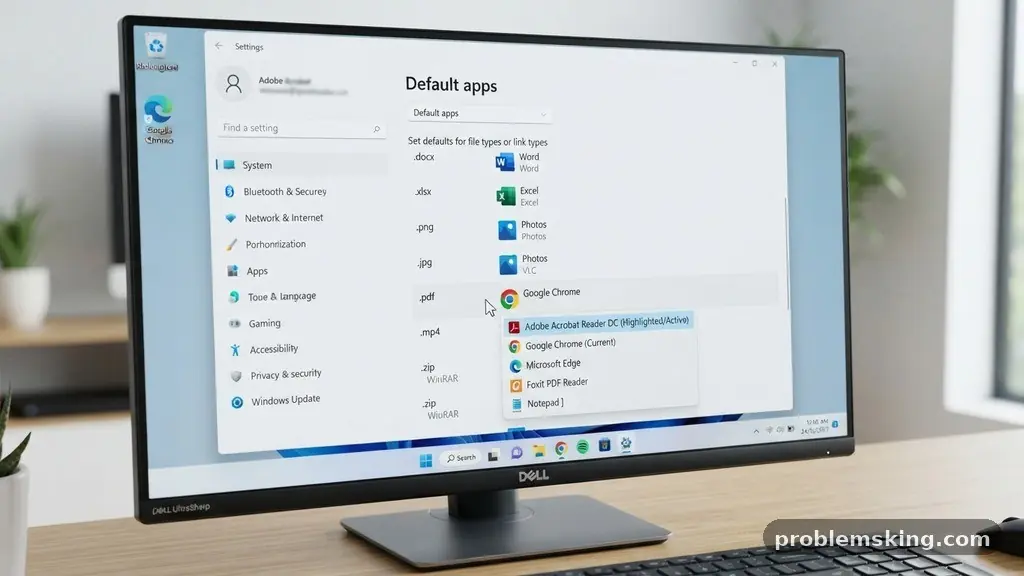
When you double-click a document, you expect it to launch in your preferred software. Finding yourself fixing Files That Open With the Wrong Default Application is a common hurdle that disrupts your workflow and consumes valuable time. Whether a PDF stubbornly insists on opening in a web browser or a spreadsheet launches in a text editor, these misconfigured associations are usually simple to resolve.
By understanding how your operating system manages file extensions and their corresponding programs, you can regain control over your digital environment. This article provides the practical steps needed to correct these settings on both Windows and macOS, ensuring your files always open exactly where you want them.
Correcting File Associations on Windows
The most direct way to fix Files That Open With the Wrong Default Application on Windows is through the dedicated settings menu. Windows 10 and 11 provide a centralized hub for managing these links, making it unnecessary to hunt through deep system folders. You should start by opening the Start menu and typing “Default apps” into the search bar.
Once you select this option, you will see a list of installed software and the file types assigned to them. You can search for a specific file extension, such as .docx or .jpg, to see which program is currently set as the primary handler.
If you prefer a more tactile approach, the right-click menu is your best friend. Locate a file that is misbehaving, right-click it, and select “Open with.” From there, click “Choose another app” at the bottom of the list.
It is crucial that you check the box labeled “Always use this app to open .[extension] files” before clicking OK. This single action updates the registry entry for that specific file type across your entire user profile.
Managing File Assignments in macOS Finder
On a Mac, the process for fixing Files That Open With the Wrong Default Application relies on the “Get Info” pane. This tool is the central command for file properties and metadata within the macOS Finder. First, select the file you want to change and press Command + I on your keyboard.
Alternatively, you can right-click the file and select “Get Info” from the context menu. A window will appear showing various details about the file, including its current “Open with” setting.
Within the “Open with” section of this window, you will see a dropdown menu listing all compatible applications. Choose the program you prefer from this list. Once you have selected the correct application, click the “Change All” button located just below the dropdown.
A confirmation dialog will appear, asking if you want to apply this change to all documents of that same type. Clicking “Continue” ensures that every file with that specific extension will now launch in your chosen program moving forward.
Understanding File Extensions and MIME Types
At the heart of every file association is the file extension, which acts as a shorthand for the operating system. These three or four characters at the end of a filename tell the computer which data structure to expect.
When you encounter issues with file associations, it is often because the extension has been stripped or mistakenly associated with a generic system file handler. In some cases, the MIME type—a standard for identifying the nature of a document—might be misreported by an application.
The operating system configuration relies on these tags to determine the correct executable files for opening content. If you have installed a new software suite, it may have overridden your previous settings without asking. Regularly auditing your file associations can prevent these conflicts from snowballing into a larger organizational mess.
You can learn more about how these standards work by visiting the Internet Assigned Numbers Authority database of official media types. Keeping your system’s registry or preference files clean is essential for maintaining a responsive and predictable computing environment.
Common Scenarios for Misconfigured Defaults
Many users find themselves fixing Files That Open With the Wrong Default Application after installing new software. Multimedia players, for instance, often include a “check for associations” box during the installation process.
If you leave this checked, the player may hijack your video and audio files, even if you prefer a different tool. Similarly, web browsers frequently attempt to set themselves as the default for HTML files and PDFs.
Another frequent culprit is the migration of files from one computer to another. When you move data between different operating systems or user accounts, the local associations can sometimes break. The system sees a file type it recognizes but cannot find the specific path to the original application that created it.
In these instances, the system defaults to a generic handler, such as Notepad or a basic viewer. Resetting the association manually forces the OS to re-establish the correct path to the executable file.
Comparing Methods Across Platforms
The way different systems handle default programs varies significantly in terms of interface design and user control. While Windows uses a centralized registry to store these links, macOS stores them in property list files associated with the Finder.
This difference means that the underlying mechanism for fixing Files That Open With the Wrong Default Application is distinct, even if the result feels the same. The table below outlines the primary differences in how these two major operating systems manage these tasks.
| Feature | Windows Approach | macOS Approach |
|---|---|---|
| Primary Interface | Settings > Apps > Default Apps | Finder > Get Info |
| Registry Impact | Updates the Windows Registry | Updates Property List (.plist) files |
| Bulk Changes | Via “Choose default apps by file type” | Via “Change All” button in Get Info |
| Context Menu | “Open with” > Choose another app | “Open with” > Other… |
Troubleshooting Persistent Association Issues
Sometimes, simply changing the default program does not stick, suggesting a deeper issue with the system configuration. If you find that settings revert after a restart, you might be dealing with a corrupted file association cache.
On Windows, you may need to use the registry editor to manually delete the UserChoice key for a specific extension. This is an advanced step, so always back up your registry before making changes to avoid unintended system instability.
On macOS, a corrupted Launch Services database can cause similar headaches. You can reset this database using the Terminal if the standard “Get Info” method fails to persist across reboots.
If you are not comfortable using the command line, you might consider creating a new user account to see if the problem persists there. If the issue is gone in the new account, the problem is likely isolated to your specific user settings rather than a global system error.
Best Practices for Maintaining File Order
Consistency is the best defense against needing to constantly fix Files That Open With the Wrong Default Application. Whenever you install a new program, take a moment to review its settings immediately.
Many modern applications include a “File Associations” tab within their own preferences menu. By managing these from within the app, you ensure that the software itself reports its capabilities correctly to the operating system.
It is also wise to keep your software updated to the latest versions. Developers often release patches that fix bugs related to how their apps register themselves with the OS.
If you use specialized software for work, such as CAD programs or advanced photo editors, ensure they are set as the primary handlers for their specific file types. This prevents generic system viewers from accidentally opening large files and potentially causing a crash or data loss.
- Review default settings after every major software update.
- Use the “Always use this app” checkbox to enforce your preferences.
- Keep your operating system updated to ensure compatibility.
- Avoid installing multiple programs that perform the same task if you don’t need them.
- Check application-specific settings for internal association toggles.
Frequently Asked Questions
Why do my files keep reverting to an old program?
If your settings keep changing back, a recently installed application may have a “force association” feature enabled. Check the settings of the program that keeps hijacking your files and look for an option to disable automatic file association management.
Can I set a different app for just one specific file?
Yes, you can use the “Open with” menu without clicking the “Always use this app” checkbox. This opens the file just once in that specific program while leaving your system-wide default association intact for all other files of that type.
Is it safe to edit the Windows registry for associations?
Editing the registry is safe only if you are careful and create a backup first. It is generally recommended as a last resort when the standard Settings menu fails to resolve the issue, as incorrect changes can lead to system errors.
Does a web browser count as an application for file associations?
Yes, browsers are treated as applications. If your PDFs or HTML files open in Chrome or Edge instead of your preferred editor, you need to change the default app for those specific extensions in your system settings.
What if the application I want isn’t in the list?
If your preferred app is missing, select “Choose another app” or “Other” and manually navigate to the program’s installation folder. Select the main executable file (.exe or .app), and it will be added to your list of available choices.
Final Thoughts on Managing Your Files
Taking control of how your computer handles documents is a fundamental skill for any digital user. By knowing how to fix Files That Open With the Wrong Default Application, you eliminate one of the most common sources of daily frustration. Whether you are adjusting settings in the Windows registry or using the Finder on macOS, the goal is always to create a predictable and efficient workspace.
Remember that the operating system is designed to facilitate your needs, not dictate them. If you find yourself struggling with these settings, don’t hesitate to dive into the preferences and take manual control.
Consistent maintenance of these associations ensures that your tools are always ready when you need them. If you encounter persistent issues, feel free to share your specific configuration in the comments below.