Learning the process of identifying Duplicate Files Without Accidentally Deleting Important Data is a fundamental skill for anyone managing a large digital library. Excess copies of documents, photos, and system files often clutter storage drives, leading to unnecessary bloat and confusion.
By using systematic approaches that prioritize file integrity, you can reclaim disk space without the fear of losing unique or critical information. This article focuses on secure methods for scanning and cleaning your storage, ensuring that your most valuable data remains untouched while the redundant clutter is safely removed.
Understanding File Hashing for Accurate Identification
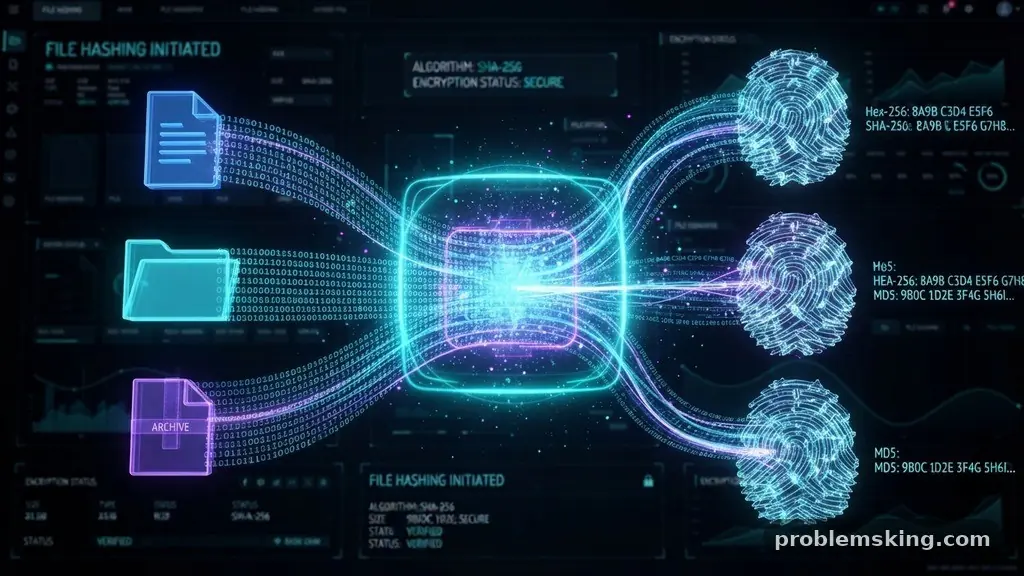
The most reliable way to find true duplicates is by using a file hash, which acts as a unique digital fingerprint for any given file. When you generate an MD5 checksum or a SHA-256 value, the software reads the entire content of the file and produces a short, fixed-length string of characters.
If even one bit of data changes in the file, the hash changes completely. This ensures that you are comparing the actual content rather than just the file name or creation date.
Relying on file names alone is dangerous because two completely different documents might share the same name if they were saved in different folders. By using hashing algorithms, you ensure that only files with identical content are flagged for removal.
Many modern tools automate this process, calculating these hashes in the background to provide a list of exact matches. This eliminates the risk of deleting a renamed version of a file that you might actually need.
Executing a Byte-by-Byte Comparison
For those who want the highest level of certainty, a byte-by-byte comparison is the gold standard of data validation. This method involves the software reading the raw binary data of two files and comparing them character by character.
While this process is more computationally intensive than simple hashing, it offers absolute proof that two files are identical. It is particularly useful when you are dealing with large video files or high-resolution images where data corruption might occur.
Because this method requires more processing power, it is usually reserved for the final step of the deduplication process. After identifying potential candidates through metadata or hash comparisons, a byte-by-byte check serves as the ultimate safeguard.
You should look for software that offers this “strict” comparison mode if you are worried about accidentally removing data that appears similar but contains subtle, important differences. This level of rigor is essential when managing archives where file integrity is paramount.
Evaluating Metadata and File Attributes
Metadata, such as EXIF data in photos or creation dates in documents, provides additional context that can help you decide which file to keep. While the content of two files might be identical, one might have been created more recently or saved in a more accessible folder.
When identifying Duplicate Files Without Accidentally Deleting Important Data, it is helpful to look at these attributes to prioritize the “original” version. You might choose to keep the file with the oldest timestamp or the one located in your primary document directory.
However, be aware that metadata can be misleading. Some applications update the “last accessed” date every time a file is opened, even if the content remains unchanged. Do not rely exclusively on these timestamps to determine which file is the “master” copy.
Instead, use metadata as a secondary filter after the file content has been verified as a duplicate. This layered approach ensures that you are making informed decisions about which files to discard.
Safe Strategies for Cloud Storage Synchronization
Cloud storage synchronization presents a unique challenge because files are often mirrored across multiple devices. If you delete a duplicate on your local laptop, the sync client might interpret that as a command to delete the file from the cloud and all your other connected devices.
Before running a cleanup tool on a synced folder, you must disable the synchronization process. This breaks the link between your local storage and the cloud, protecting your files from accidental mass deletion.
Once the sync is paused, you can safely run your deduplication software and review the results. If you decide to remove files, consider moving them to a “quarantine” folder on an external hard drive rather than deleting them immediately.
This provides a buffer period where you can confirm that no critical applications were relying on those files. Only after a few days of normal operation should you permanently clear that temporary folder.
The Importance of a Robust Backup Strategy
Before embarking on any major cleanup, you must ensure you have a current, verified backup of your entire system. A proper backup strategy involves more than just a simple copy; it should include a system restore point that can revert your machine to its previous state.
If you accidentally delete a critical system file, having a restore point or a full disk image allows you to recover without losing your progress. You can find more information on data protection through resources like the National Institute of Standards and Technology.
Do not treat your primary hard drive as the only place where your data lives. If you are cleaning up a large partition, create a secondary backup on an external drive or a secure cloud service first.
This creates a safety net that removes the anxiety associated with deleting files. If you find yourself in a situation where you are unsure about a file’s importance, the default action should always be to keep it until you can verify its purpose.
Comparing Common Deduplication Approaches
To choose the right method for your needs, it helps to compare the primary techniques used by software today. Each method offers a different balance between speed and precision.
| Method | Speed | Accuracy | Best Used For |
|---|---|---|---|
| File Name/Size | Very Fast | Low | Quick initial scans |
| MD5/SHA-256 Hash | Moderate | High | Daily maintenance |
| Byte-by-Byte | Slow | Highest | Critical archives |
As shown in the table, the speed of the scan often comes at the expense of accuracy. While name-and-size matching is convenient for finding obvious duplicates, it is prone to false positives.
Always prioritize accuracy over speed when you are dealing with important personal or professional data. Using a hash-based approach is generally the best middle ground for most users.
Utilizing Preview Tools Before Deletion
Most reputable file management software includes a preview tool that allows you to inspect the content before confirming its removal. This is the most effective way to identify Duplicate Files Without Accidentally Deleting Important Data.
By opening the file directly from the software interface, you can verify if it is a duplicate of a file you already have or a unique version with specific changes. This step is particularly important for image files, where visual inspection is often faster than checking metadata.
If the software does not allow you to preview the file, treat it with extreme caution. Never delete a file based on its name alone without opening it first to check its contents.
If you have many files to review, use a tool that presents them in a side-by-side view. This makes it much easier to spot discrepancies in content, formatting, or quality that might not be captured by simple file analysis.
Common Questions About Data Cleanup
How do I know if a duplicate file is a system file?
System files are typically located in protected directories like Windows or System32. A good rule of thumb is to never delete files in folders you did not personally create. If a deduplication tool flags a file in a system directory, it is usually best to ignore that alert entirely.
What should I do if I accidentally delete a file?
If you realize you have deleted something important, stop writing data to your drive immediately. Using file recovery software can often retrieve deleted items if the space has not been overwritten. If you have a backup or a system restore point, use that to restore the file to its original location.
Can I safely delete duplicates on an external hard drive?
Yes, but you should still follow the same precautions. Always back up the external drive to another location before starting the cleanup process. If the drive is used for backups, ensure you are not deleting the only copy of a file that was meant to be preserved.
How often should I scan for redundant data?
There is no fixed schedule, but performing a scan once every few months is usually sufficient for most users. If you frequently download large files or move data between devices, you might want to perform a check more often. Consistency is more important than frequency.
Are free deduplication tools safe to use?
Many free tools are excellent, but you should always research the developer and read recent reviews. Look for open-source software, as these projects are often transparent about their code and how they handle your data. Avoid tools that require payment to “unlock” basic features or those that display aggressive advertisements.
Best Practices for Future File Management
The best way to manage duplicates is to prevent them from accumulating in the first place. Establish a clear folder structure and stick to it, ensuring that files are stored in logical locations rather than scattered across your desktop or downloads folder.
When you download a file, move it to its permanent home immediately. This simple habit reduces the likelihood of creating multiple copies that you will have to clean up later.
Furthermore, consider implementing a consistent file naming convention that includes dates or project codes. This makes it much easier to identify the most recent version of a document at a glance.
By taking a proactive approach to your file system structure, you significantly reduce the need for aggressive cleaning later on. Identifying Duplicate Files Without Accidentally Deleting Important Data becomes a much simpler task when your digital workspace is organized from the start.
In conclusion, maintaining a clean and efficient digital environment is entirely achievable when you apply careful, verification-focused methods. By leveraging hashing algorithms, utilizing preview tools, and maintaining a solid backup strategy, you can confidently prune redundant data. Remember that the goal is not just to save space, but to ensure that your important work remains organized and accessible.
Take your time during the scanning process, always verify before deleting, and enjoy the peace of mind that comes with a well-managed system. If you find the process daunting, start with a small, low-risk folder to gain confidence before tackling your larger archives. Your digital files will be much easier to manage once you have a reliable system in place.