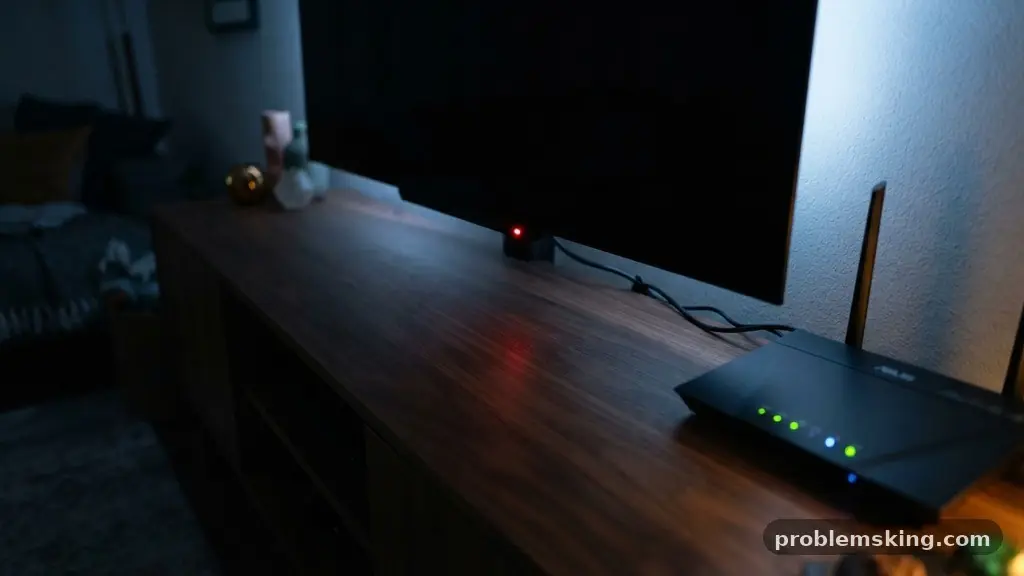
When you wake up to find your streaming apps won’t load, you are likely wondering what causes a smart TV to lose its internet connection overnight. This frustrating glitch often stems from background processes like automated firmware updates or your router cycling through its DHCP lease renewal cycle while you sleep.
Understanding these technical hiccups helps you distinguish between a temporary software hang and a more permanent signal issue. By identifying the root cause, you can stop wasting time on manual reboots and start enjoying a stable connection that stays active long after you turn off the screen.
Power Management and Standby Modes
Most modern televisions are designed to enter a deep sleep or standby mode to conserve electricity. During this time, the device may cut power to the network adapter to save energy, which is a common reason for a dropped connection. If the television doesn’t wake the adapter properly when you turn the screen on, you are left with a “no internet” error.
You can often mitigate this by checking your TV’s energy-saving settings in the system menu. Some models have an “Always-on” or “Quick Start” feature that keeps the wireless card active even when the screen is dark. While this uses a marginal amount of extra power, it prevents the network adapter power management system from shutting down the connection entirely.
The Role of DHCP Lease Renewals
Your router manages a list of all devices connected to your home network using a process called DHCP. It assigns a temporary IP address to your television, which has an expiration time known as a lease. If your router is configured with a very short lease time, it might attempt to renew the address while the TV is in standby.
If the television fails to acknowledge the renewal request, the router may drop the device from the network table. This creates an IP address conflict or simply leaves the TV without a valid gateway to the internet. Extending the lease time in your router’s administrative dashboard can often stabilize this interaction and prevent the TV from being kicked off the network during the night.
Firmware Updates and Background Cycles
Television manufacturers frequently push background software patches to fix bugs or improve app compatibility. These updates usually occur during low-usage hours, such as 3:00 AM, to avoid disrupting your viewing experience. If the download process hangs or the system fails to reboot correctly after the installation, the network interface can become unresponsive.
You can check if your TV is set to auto-update by navigating to the “Support” or “System” menu on your remote. While keeping firmware current is essential for security, sometimes a failed update will leave your network settings in a corrupted state. If you suspect an update caused the issue, performing a hard power cycle—unplugging the TV from the wall for sixty seconds—can often force a clean re-initialization of the network stack.
Network Signal Interference and Congestion
Your Wi-Fi signal is subject to environmental factors that can change significantly after you go to bed. If you live in a dense apartment complex, your neighbors’ routers might be switching channels or increasing their broadcast power during the night. This leads to router channel congestion, which can degrade your signal quality to the point where the TV drops the handshake with your access point.
Common Sources of Wireless Interference
- Microwave ovens or cordless phones operating on the 2.4 GHz frequency band.
- Large metal appliances or mirrors blocking the path between the router and the TV.
- Neighboring Wi-Fi networks competing for the same broadcast channel.
- Bluetooth devices that are active and nearby, causing localized noise.
If you frequently lose connection, consider switching your TV to the 5 GHz band. While it has a shorter range, it is far less crowded than the 2.4 GHz band and is much more resistant to the type of interference that often fluctuates throughout the night.
Router Firmware and Security Protocols
Sometimes the problem doesn’t lie with the television, but with the router itself. Outdated router firmware can struggle to maintain a stable link with modern IoT devices, leading to intermittent disconnects. Additionally, if you have recently upgraded to WPA3 security protocols, older smart TVs might have trouble maintaining an authenticated session.
It is wise to check the manufacturer’s website for the latest router firmware updates regularly. You can find detailed information on how to manage your home network security and maintain connectivity at the Federal Communications Commission consumer guide. Keeping your router’s software fresh ensures that it handles authentication requests from your TV without timing out.
DNS Server Settings and Connectivity
Even if your TV is connected to the router, it might fail to reach the internet if it cannot resolve website addresses. This is typically a problem with DNS server settings. If your ISP’s default DNS servers are struggling, your TV might time out while trying to look up the server addresses for streaming services like Netflix or YouTube.
You can manually override these settings by entering your network configuration menu on the TV. Switching to a public, reliable DNS provider like Google (8.8.8.8) or Cloudflare (1.1.1.1) can often resolve these latency issues. This small change ensures that your TV doesn’t have to wait for a slow local server to resolve connection requests.
Frequency Band and Signal Attenuation
Wi-Fi signal attenuation is the gradual loss of signal intensity as it travels through walls, floors, and furniture. Even if your signal is “good” during the day, slight changes in atmospheric conditions or physical movement of objects can push that signal below the threshold required for a stable connection. If your TV is on the edge of your router’s effective range, it will be the first device to drop when the signal weakens.
Comparison of Wi-Fi Frequency Bands
| Feature | 2.4 GHz Band | 5 GHz Band |
|---|---|---|
| Range | Longer, penetrates walls well | Shorter, less wall penetration |
| Speed | Slower, prone to congestion | Faster, higher bandwidth |
| Interference | High (many household devices) | Low (less crowded) |
If you find your TV is consistently losing its connection, you may need to invest in a Wi-Fi extender or a mesh networking system. Placing a node closer to the entertainment center ensures that the signal stays strong regardless of any nocturnal interference.
MAC Address Filtering and Security
Some advanced routers use MAC address filtering as a security measure, allowing only pre-approved devices to stay on the network. If your router has a strict security policy, it might periodically re-verify the list of authorized devices. If the TV fails to report its MAC address correctly during this check, the router will deny it access.
Check your router’s “Access Control” or “MAC Filtering” settings to ensure your TV is on the whitelist. If you prefer not to use this feature, disabling it is often a viable solution for home networks where physical access to the router is already restricted. This removes an unnecessary layer of authentication that frequently causes devices to drop after a period of inactivity.
Frequently Asked Questions
Does leaving my TV on standby cause connection issues?
Yes, it can. When a TV enters standby mode, the network adapter may enter a low-power state. If the TV cannot wake the adapter correctly, the connection will appear dropped when you turn the screen on again.
How do I know if my router is the problem?
If other devices in your home are also losing internet access at the same time, the issue is likely with your router or your ISP. If only the TV is affected, focus on the TV’s network settings or its proximity to the router.
Should I use a static IP for my smart TV?
Assigning a static IP address can prevent issues caused by DHCP lease renewals. By giving your TV a permanent address in your router’s settings, you eliminate the risk of the router failing to renew the connection.
Can a factory reset fix persistent connection drops?
A factory reset is often the final step if you have ruled out router issues and signal interference. It clears corrupted cache files and restores the network stack to its original, factory-default configuration, which often resolves deep-seated software glitches.
Will a wired connection solve these problems?
Switching to an Ethernet cable is the most reliable way to maintain a connection. A wired link is not affected by signal interference, wall attenuation, or channel congestion, making it the gold standard for stable streaming.
Final Thoughts
Pinpointing exactly what causes a smart TV to lose its internet connection overnight requires a process of elimination. Start by checking your router’s lease times and your TV’s power-saving settings, as these are the most common culprits. If the issue persists, look into signal interference and consider upgrading to a more stable 5 GHz connection or a wired Ethernet cable.
Most of these problems are simple software or configuration mismatches that you can resolve with a few adjustments in your settings menu. Once you have stabilized your network, you can enjoy your media without the frustration of troubleshooting every single morning. If you continue to experience drops after trying these fixes, feel free to reach out to your ISP to ensure there are no upstream issues affecting your local connection.