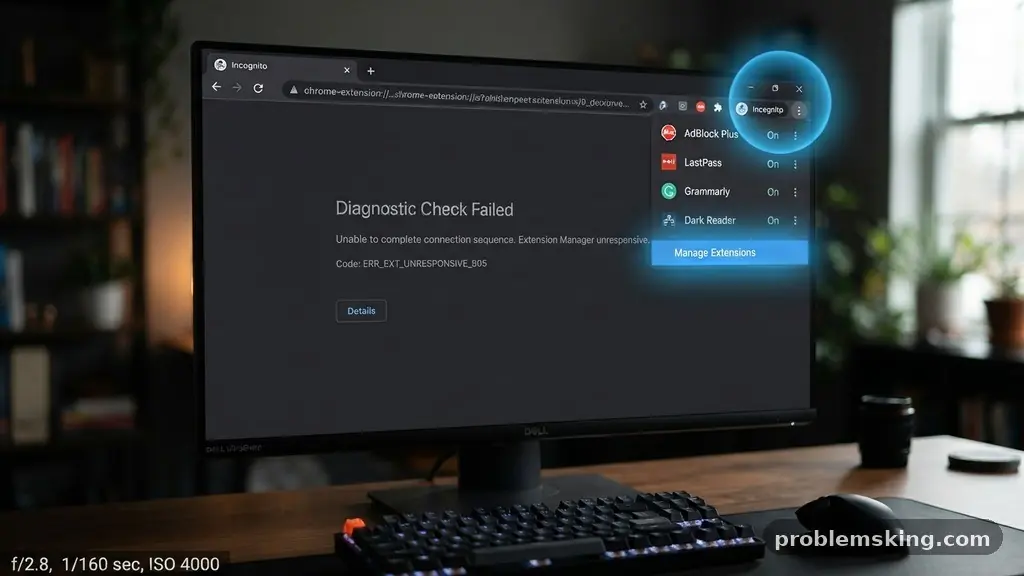
When you encounter a broken webpage, the culprit is often closer than you think. Learning the process of checking Whether a Browser Extension Is Causing Website Errors can save you hours of frustration and unnecessary system resets. By systematically isolating your add-ons, you can determine if a rogue plugin is interfering with scripts or layout rendering.
This article provides a clear, step-by-step approach to identifying these conflicts effectively. You will learn how to use built-in browser tools to pinpoint exactly which piece of software is disrupting your browsing experience, ensuring your workflow remains smooth and efficient without needing to reinstall your entire browser.
Isolating Extensions via Incognito Mode
The quickest way to verify if an extension is the source of your technical headache is through private browsing. Most browsers disable all extensions by default when you open an incognito or private window. If the website loads perfectly in this state, you have definitive proof that one of your installed plugins is causing the issue.
To test this, copy the URL of the problematic page and paste it into an incognito window. If the content displays correctly, you can move on to identifying the specific offender. If the error persists even in private mode, the problem likely lies with your network connection, the website’s own server, or your browser’s cache.
This method serves as a primary filter. It prevents you from wasting time auditing individual extensions when the root cause might be something entirely different. Always start here to establish a baseline for your browser troubleshooting efforts.
Managing Extensions in the Browser Settings
Once you confirm that an extension is indeed the culprit, you need to find out which one. Start by opening your browser’s extension manager. You can usually access this via the three-dot menu in the top right corner of your browser.
Look for a section labeled “Extensions” or “Manage Extensions.” From here, you should systematically toggle off your extensions one by one. After disabling a single extension, refresh the problematic website to see if the error clears.
If the page starts working, you have identified the source of the conflict. If the error remains, toggle that extension back on and move to the next one. This iterative process, while slightly tedious, is the most accurate way to locate specific plugin conflicts.
Using Chrome Developer Tools for Insight
Advanced users can skip the manual toggle method by utilizing the Chrome Developer Tools. Right-click anywhere on the broken webpage and select “Inspect” to open the developer console. This interface provides a real-time look at what the browser is struggling to load.
Navigate to the “Console” tab to view specific warnings and errors. Often, you will see red text indicating failed script loads or blocked resources. These messages frequently name the extension or the specific file path responsible for the failure.
Check the “Network” tab as well to see if any requests are being blocked or taking an unusually long time to complete. If you see a request being canceled by an ad blocker or a privacy tool, that is your smoking gun. This technical approach bypasses guesswork and provides concrete data regarding the site’s failure.
Common Categories of Problematic Extensions
Not all extensions are created equal when it comes to breaking web pages. Certain categories are notorious for interfering with JavaScript or CSS rendering. Understanding these patterns helps you predict which tools might be causing trouble.
Ad blockers and script blockers are the most common offenders. They are designed to stop code from running, which sometimes includes essential scripts required for a page to function. Privacy-focused extensions that strip tracking pixels can also accidentally remove legitimate functional elements of a site.
| Extension Type | Common Impact | Risk Level |
|---|---|---|
| Ad Blockers | Blocks essential site scripts | High |
| Privacy/Anti-Tracking | Breaks login/auth flows | Medium |
| Translation Tools | Alters DOM structure | Low |
| Theme/Style Customizers | Disrupts page layout | Medium |
Keep this list in mind when performing your audit. If you have several ad blockers running simultaneously, they may be conflicting with each other as well as the website. Disabling the most aggressive filters first is usually the most productive path.
The Role of Cache Clearing
Sometimes, the issue isn’t the extension itself, but the data it has saved. Browser extensions often cache information to speed up their functions, but this data can become corrupted or outdated. If you suspect an extension is the problem, clearing your cache is a vital secondary step.
Go into your browser settings and navigate to the privacy or history section. Select the option to clear browsing data, focusing specifically on “Cached images and files.” You do not necessarily need to delete your cookies or saved passwords.
After clearing the cache, try loading the website again with your extensions enabled. If the site works, the extension was simply using a stale piece of data. If it still fails, you should return to the manual toggling method described earlier.
Checking for Update Conflicts
Extensions are updated frequently, and sometimes a new version introduces a bug that conflicts with a specific website’s code. If a site that worked yesterday is broken today, a background update to an extension is a likely suspect. Check your extension manager to see when your plugins were last updated.
Some browsers allow you to see the version number of each extension. If you recently updated a major tool, you might consider temporarily rolling back to a previous version or checking the developer’s support page. Often, other users will report the same issue on forums if a widespread update has broken compatibility.
If you find that a specific version is broken, leave that extension disabled for a few days. Developers usually release patches quickly once they realize their update has caused a widespread conflict. Checking for these updates is a proactive way to maintain browser performance.
When to Reinstall or Replace Extensions
If you find an extension that causes errors, you do not always have to delete it permanently. Sometimes, a clean install resolves the issue by clearing out corrupted local files. Remove the extension entirely, restart your browser, and then install a fresh copy from the official store.
If the error persists after a clean install, the extension likely has a fundamental compatibility issue with that specific website. In this case, you may need to look for an alternative tool that performs the same function without triggering errors. Many developers offer similar tools that use different methods for blocking ads or modifying CSS.
Remember that browser environments change constantly. A tool that worked flawlessly for years might eventually become incompatible with modern web standards. Being willing to switch to a more modern, well-maintained alternative is part of effective browser maintenance.
Documenting Your Findings
If you frequently encounter website errors, start a simple log of which extensions caused trouble on which sites. This helps you recognize patterns over time. For example, you might realize that a specific “Dark Mode” extension consistently breaks the layout of your banking portal.
You can learn more about how browsers handle these conflicts by visiting the official MDN Web Docs regarding how browsers process web content. Understanding the underlying technology makes you better at diagnosing issues yourself. Keeping a small list of known “problematic” plugins saves you from repeating the troubleshooting process every time you visit a specific site.
- Test in Incognito mode first to confirm the issue is extension-related.
- Disable extensions one by one to isolate the specific conflict.
- Check the Chrome Developer Tools console for red error messages.
- Clear your browser cache to remove stale, corrupted data.
- Reinstall the extension to fix potential local installation bugs.
- Seek modern, updated alternatives if the error persists.
Frequently Asked Questions
Why do some extensions only break specific websites?
Websites use different coding frameworks and libraries. An extension might conflict with the specific JavaScript library a site uses, while remaining perfectly compatible with sites built on other platforms.
Can extensions slow down my browser even if they don’t cause errors?
Yes, every active extension consumes memory and CPU cycles. If you have dozens of extensions running, they can significantly degrade performance, leading to slow page loads even if no technical errors occur.
Is it safe to disable extensions to test for errors?
It is perfectly safe to disable extensions. Your browser’s core functionality remains intact without them, and you can always re-enable them immediately after your testing is complete.
What if the website is still broken after disabling all extensions?
If the site remains broken with all extensions disabled, the problem is likely on the server side or related to your browser’s core settings. Try clearing your browser’s entire cache or testing the site in a different browser entirely.
Do I need to restart my browser every time I disable an extension?
Usually, no. Most modern browsers apply extension changes instantly. If you are still seeing errors after disabling an extension, a simple page refresh is usually sufficient to see the result.
Final Thoughts on Browser Stability
Identifying whether a browser extension is causing website errors is a manageable task if you follow a logical, step-by-step approach. By starting with incognito mode and using developer tools to find concrete evidence of conflicts, you can resolve most issues without outside help. Remember that the goal is to keep your browsing experience both functional and secure.
Don’t hesitate to remove or replace tools that no longer serve your needs or that constantly interfere with your daily tasks. If you continue to experience persistent issues, feel free to share your specific findings or reach out to browser support communities for more targeted advice. Taking control of your browser configuration ensures that your time online remains productive and error-free.