Dealing with a computer clock that keeps changing the wrong time zone can be incredibly frustrating, especially when it disrupts your scheduling or causes authentication errors with secure websites. Whether your system suddenly jumps forward or backward by several hours, the issue usually stems from a conflict between your OS settings and your hardware firmware.
By understanding how to manage your regional settings and synchronizing with an NTP server, you can resolve these discrepancies quickly. Fixing a Computer Clock That Keeps Changing the Wrong Time Zone is a manageable task once you identify whether the culprit is a software configuration issue or a failing internal power source.
Identifying the Root Cause of Time Drift
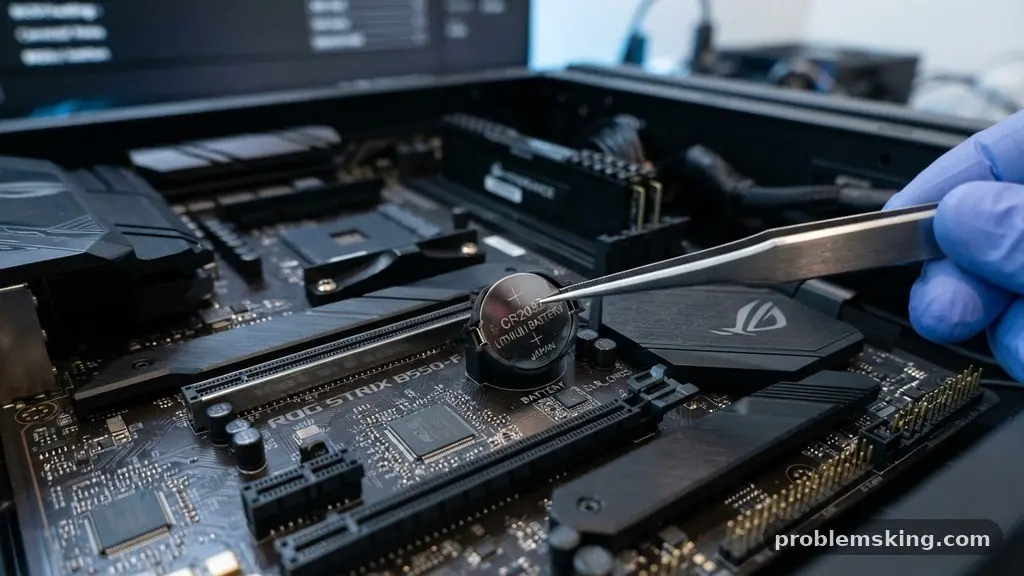
The first step in fixing a Computer Clock That Keeps Changing the Wrong Time Zone is determining if the problem is localized to your operating system or your hardware. If your clock resets to a specific date—often January 1st, 2010, or 2005—it is highly likely that your motherboard battery is depleted.
This small component, known as the CMOS battery, provides just enough power to maintain the BIOS settings when your computer is unplugged. When this battery dies, the hardware clock loses its reference point and reverts to the factory default.
You can verify this by checking your system clock immediately after a full shutdown and power cycle. If the time is correct while the machine is running but incorrect after it has been turned off for an hour, the physical battery is the primary suspect.
If the time remains accurate while the computer is off but drifts while you are actively using Windows, the issue is almost certainly software-related. Software issues often involve conflicting time zones, corrupted system files, or a misconfigured Windows Time service.
Managing Windows Regional Settings
Many users encounter time zone shifts because their regional settings are incorrectly mapped or set to update automatically based on an inaccurate geolocation. To check this, navigate to your Date & Time settings within the control panel or system tray.
Ensure that the “Set time zone automatically” toggle is active, but also verify that your selected time zone matches your actual physical location. Sometimes, Windows will interpret your IP address incorrectly, placing you in a neighboring time zone that observes different daylight saving time rules.
If the automatic detection continues to fail, try setting the time zone manually to a fixed location. This prevents the system from constantly polling network services that might be providing conflicting data.
You should also ensure that the setting for “Adjust for daylight saving time automatically” is enabled. If this box is unchecked, your computer will fail to shift its UTC offset when seasonal changes occur, leading to a permanent one-hour discrepancy that persists until the next seasonal switch.
Synchronizing with Internet Time Servers
Your computer relies on an external NTP server to keep its internal clock accurate against global standards. If this synchronization fails, your system clock will begin to drift by a few seconds or minutes every day.
You can force a resynchronization by opening the Date & Time settings and clicking the “Sync now” button under the Internet Time section. If this process consistently fails, your machine may be blocked from reaching the default time server by a firewall or a network policy.
To improve reliability, consider switching your time server to a more stable public option. The Network Time Protocol Project provides extensive documentation on how these servers function globally.
You can manually change your server address in the settings menu to a more responsive source, such as those provided by Google or NIST. This often resolves persistent drift issues that occur when the default Windows server is unresponsive or overloaded with requests.
Resolving Conflicts with Dual-Boot Systems
If you are running both Windows and Linux on the same machine, you are likely experiencing a classic conflict in how each OS interprets the hardware clock. Windows expects the hardware clock to be set to your local time, whereas most Linux distributions expect the hardware clock to be set to Coordinated Universal Time (UTC).
When you switch between these operating systems, each one tries to adjust the motherboard clock to its own preferred standard. This results in the time being off by exactly the number of hours corresponding to your UTC offset every time you reboot.
The easiest way to solve this is to force Windows to use UTC, or force Linux to use local time. In Windows, you can modify the registry editor to tell the system to treat the hardware clock as UTC.
This aligns the two operating systems and prevents them from constantly fighting over the correct time. If you prefer not to touch the registry, you can execute a simple terminal command in your Linux environment to keep the hardware clock in local time mode.
Using the w32tm Command for Troubleshooting
For advanced users, the command line offers deeper visibility into the state of your system clock. The w32tm command is a powerful utility that allows you to diagnose, monitor, and reset the Windows Time service.
If you suspect that your time service is corrupted, you can open a command prompt as an administrator and type “w32tm /resync” to force an immediate update. This is often more effective than using the graphical user interface because it provides a direct error code if the synchronization fails.
If the service itself is acting up, you can use “w32tm /unregister” followed by “w32tm /register” to reset the service to its factory defaults. This effectively clears out any corrupted configuration files that might be causing the clock to behave erratically. You should also check the status of your task scheduler to ensure that the time synchronization task hasn’t been disabled by a third-party application or an over-aggressive security suite.
Analyzing Hardware Firmware and BIOS Settings
Sometimes, the issue lies deeper within the UEFI firmware or BIOS settings of your motherboard. If your BIOS clock is set incorrectly, Windows will inherit that time every time you boot up.
Enter your BIOS or UEFI menu during the initial startup sequence—usually by pressing F2, F12, or Delete—and verify that the date and time are accurate. If the time is wrong here, you must fix it within the firmware before the operating system even has a chance to load.
While you are in the BIOS, check for any settings related to “Time Zone” or “Daylight Savings.” Some modern motherboards have their own internal clocks that attempt to manage time independently of the OS.
If these settings are conflicting with your Windows regional settings, it can lead to erratic behavior. Always save your changes before exiting the BIOS to ensure the hardware clock retains the new data.
Data Comparison of Common Time Issues
Understanding the symptoms of your clock issues helps in narrowing down the potential solutions. Use the following table to identify which category your specific problem falls into based on the behavior you are seeing.
| Issue Type | Primary Symptom | Most Likely Solution |
|---|---|---|
| Dead Battery | Clock resets to a static past date | Replace CMOS battery |
| Dual-Boot Conflict | Time is off by exactly X hours | Sync hardware to UTC |
| Software Drift | Clock slowly gains or loses time | Check NTP server settings |
| Regional Error | Time zone jumps unexpectedly | Disable automatic location |
Frequently Asked Questions
Why does my computer clock jump back exactly one hour?
This almost always indicates a problem with daylight saving time settings. Check your Windows regional settings to ensure that the box for “Adjust for daylight saving time automatically” is checked. If it is already checked, your system might be misidentifying your time zone as one that does not observe daylight saving time, or it might be applying the transition at the wrong date.
Can a failing motherboard battery cause other issues?
Yes, a dead CMOS battery does more than just reset your clock. It can cause your computer to fail to boot, force you to reconfigure your BIOS settings every time you power on, or cause issues with secure internet connections. Because your computer’s security certificates are time-sensitive, an incorrect system time will often cause browsers to block access to encrypted websites.
How do I know if my NTP server is working?
You can check the status of your time synchronization in the Date & Time settings. If the service is working correctly, you will see a message indicating the time was successfully synchronized with a specific server. If you receive an error message, try switching to a different server address or checking your internet connection for firewall blocks.
Is it safe to change the time in the registry?
Modifying the registry is safe as long as you are careful and follow verified instructions. When fixing a dual-boot time conflict, you are simply adding a specific DWORD value to the Windows registry that tells the OS to handle the hardware clock differently. Always create a system restore point before making registry changes so that you can easily revert if you make a mistake.
What if the time is wrong even after replacing the battery?
If you have replaced the CMOS battery and the time still resets, there may be a deeper issue with the motherboard itself. It is possible that the power circuit responsible for maintaining the BIOS memory is damaged. In such cases, you might need to rely on a software-based time sync service that runs at startup to correct the time immediately after the system boots.
Ensuring Long-Term Clock Accuracy
Fixing a Computer Clock That Keeps Changing the Wrong Time Zone requires a systematic approach to both hardware and software. By verifying your physical CMOS battery, aligning your UTC offsets in dual-boot environments, and maintaining a stable connection to a reliable NTP server, you can eliminate these annoying time shifts for good. Regularly checking your regional settings in the system tray ensures that your machine remains aware of your local environment and seasonal adjustments.
If you follow these steps, your computer will maintain precise time, preventing further issues with authentication and scheduling. Once you have addressed the core cause, you can stop worrying about your clock and focus on the work that actually matters. If you continue to experience issues, check for motherboard firmware updates that might resolve known bugs with the system clock.