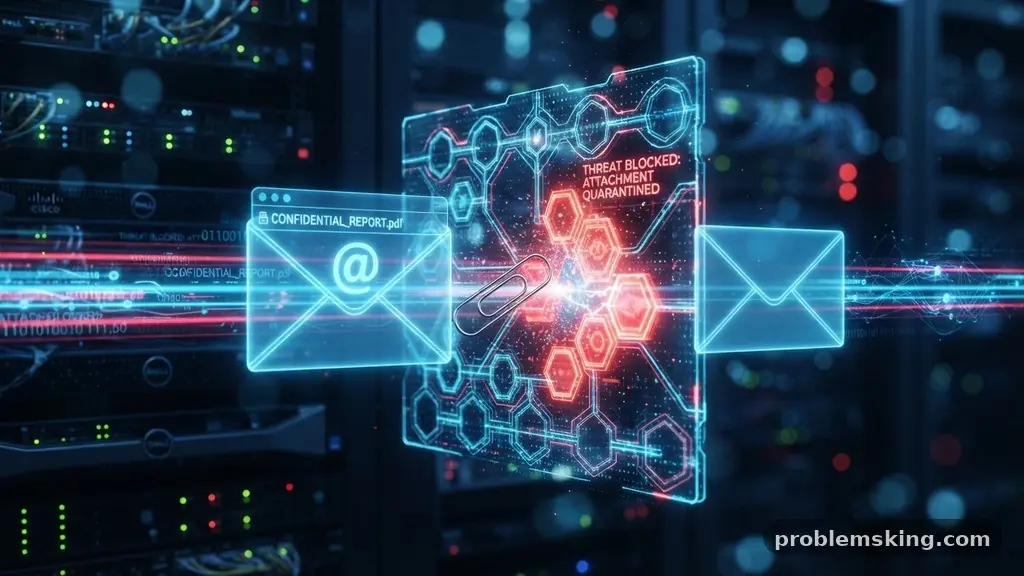
Finding yourself frustrated by email attachments missing from messages you have received is a common experience that disrupts your workflow. Whether you are waiting for a critical contract or a simple photo, the absence of an expected file can cause significant delays. This issue often stems from security protocols, technical limitations, or simple user error during the transmission process.
Understanding why these digital assets disappear helps you troubleshoot effectively and recover your missing documents. By looking at how your email client processes incoming data, you can often identify the exact point where a file was stripped or blocked before it reached your inbox.
Server-Side Filtering and Security Protocols
Most modern email providers employ rigorous security measures to protect users from malicious software. When an incoming message contains a file, the server scans the attachment for potential threats before it ever hits your local interface.
If the security software detects a suspicious pattern, it may silently drop the attachment to ensure your safety. This is often why you might see a blank message where a file icon should appear.
Antivirus software running on your mail server is particularly aggressive with executable files. If someone sends you a program or a script with an unusual file extension, the server may automatically flag it as a risk.
In some cases, the entire email is sent to a quarantine folder rather than your inbox. You should check your spam or junk directory if you suspect a legitimate file was blocked by these automated filters.
Beyond viruses, servers often look for specific MIME types that are prone to exploitation. If an attachment uses an outdated or non-standard format, the server might refuse to deliver it to prevent potential code execution.
This is a common occurrence in corporate environments where IT administrators apply strict policies to every incoming message. Contacting your system administrator is often the only way to whitelist specific senders or file types that frequently go missing.
Limitations on File Size
Every email service provider sets a maximum file size limit for incoming and outgoing messages. If a sender attempts to attach a high-resolution video or a large database, the transmission may fail entirely or be truncated by the server.
While the email text might arrive, the heavy attachment is often stripped away because it exceeds the allowed threshold. Most providers cap attachments at 20MB to 25MB, though some enterprise systems are even more restrictive.
When an attachment is too large, the sender might receive a bounce-back notification, but this does not always reach them. In some cases, the email client simply detaches the file to ensure the message body is delivered.
You might notice a small note in the email header indicating that an attachment was removed. If you are expecting large files, it is often better to ask the sender to use a cloud storage link instead of a traditional attachment.
| Provider Type | Typical Attachment Limit | Handling of Large Files |
|---|---|---|
| Personal Webmail | 20MB – 25MB | Blocks upload or forces link |
| Enterprise Exchange | 10MB – 50MB | Stripped by server policy |
| Cloud Storage Integration | Unlimited (Link-based) | Uses external hosting |
The Role of Email Client Configuration
Your choice of email client can significantly impact how attachments are displayed or handled. Some desktop applications have specific settings that hide attachments to save space or improve security.
If you are using a POP3 configuration, the client might be set to download only the text portion of an email to conserve bandwidth. This leaves the file sitting on the server, effectively making it appear missing from your local device.
Checking your account synchronization settings is a vital step in troubleshooting. Sometimes, the email client is simply failing to render the attachment icon due to a display glitch or a corrupted cache.
Switching to a webmail interface for that specific account can often reveal whether the file is truly gone or just hidden by your software. If the attachment is visible in the web browser but not in your app, you know the issue lies with your local client configuration.
Issues with File Extensions and Encryption
Certain file extensions are universally treated with suspicion by email systems. Files ending in .exe, .bat, or .scr are often blocked by default because they are common vectors for malware.
If a sender tries to rename a file to bypass these filters, it might still fail to open or be detected as a corrupted file. Always ask senders to compress files into a standard ZIP format if they are sending software or complex data structures.
Encrypted archives also present a significant challenge for incoming mail servers. Because the server cannot scan the contents of an encrypted ZIP or RAR file, it may reject the message entirely as a security precaution.
If you are expecting sensitive documents, ensure the sender is not using password protection that triggers these automated blocks. Sometimes, sending the file as a plain attachment is the only way to ensure successful delivery through restrictive filters.
Protocol Mismatch and Delivery Errors
The SMTP protocol is the backbone of email delivery, but it is not infallible. During the transmission process, data packets can be lost or mangled, especially if the connection is unstable.
A protocol mismatch between the sending server and the receiving server can lead to partial deliveries. In these rare instances, the email header and body arrive, but the MIME-encoded attachment data is dropped due to a handshake failure.
This type of error is notoriously difficult to diagnose because it leaves little trace in your inbox. If you suspect this is happening, look at the raw source code of the email message.
You can often see the structure of the message, including where the attachment was supposed to be declared. If you see a MIME boundary error in the code, it confirms that the file was lost during the transit process.
Common Reasons for Missing Attachments
There are several recurring culprits when it comes to missing files in your inbox. Recognizing these patterns can save you from unnecessary panic when an email arrives without the expected documentation.
- Server-side filtering: Automated systems remove files perceived as threats.
- Mailbox quotas: If your inbox is full, the server may reject incoming attachments to save space.
- Corrupted file metadata: The email header might claim an attachment exists while the data is missing.
- Incorrect MIME type: The server does not recognize the file format and strips it for safety.
- User error: The sender may have forgotten to actually attach the file before clicking send.
- Cloud link expiry: The sender included a link that has already expired or been deleted.
Troubleshooting Your Inbox
When you realize an attachment is missing, the first step is to verify the sender’s actions. It is surprisingly common for a sender to type the word “attached” but forget to select the file in their interface.
Before you troubleshoot your own software, ask the sender to verify if the file shows up in their “Sent” folder. If it is missing from their sent mail, the problem was never on your end.
If the file is present in their sent mail, check your official email provider documentation to see if there are known issues with specific attachment types. You might also try accessing your email from a different device or network.
Sometimes, local antivirus software on your computer can intercept and delete the file as it is being downloaded from the server. Disabling your local security temporarily can help you determine if your own machine is the one responsible for the missing data.
Frequently Asked Questions About Email Attachments
Why does the email say “Attachment Removed” in the body?
This message is usually inserted by your email provider’s security gateway. It indicates that the system identified the file as a potential security risk, such as a virus or an executable program, and stripped it to protect your account. You will need to ask the sender to share the file via a secure cloud storage service instead.
Can a full mailbox cause attachments to disappear?
Yes, if your mailbox reaches its storage limit, the server may stop accepting large incoming messages. In some configurations, the server will accept the text portion of an email but discard any associated attachments to keep the message size within the remaining quota. It is important to clear out old emails or upgrade your storage plan to prevent this.
What should I do if the file is a zip archive?
Many email systems are configured to block ZIP files because they can contain hidden malicious code. If your recipient is not getting your ZIP files, try renaming the extension to something else or, more reliably, use a cloud link. Alternatively, check if your email provider allows you to change your security settings to permit compressed folders.
Is it possible for an attachment to be “lost” during transmission?
While rare, it is possible for data packets to be dropped or corrupted during the SMTP transfer process. This typically happens if there is a severe network interruption or a mismatch between the protocols used by the sending and receiving servers. If this is a recurring issue with a specific contact, ask them to resend the email to see if it arrives intact the second time.
How do I know if my antivirus is deleting the attachment?
If you suspect your local software is the culprit, check your antivirus logs for “quarantined” files or “blocked downloads.” Most security suites maintain a history of actions taken on incoming files. If you find a log entry matching the time you received the email, you have found the source of the missing attachment.
Maintaining Reliable Communication
Managing digital correspondence requires a baseline understanding of how servers and security protocols function. When you encounter email attachments missing from messages you have received, do not immediately assume a technical failure. Often, the resolution is as simple as asking the sender to use an alternative delivery method or checking your own account settings for restrictive filters.
By staying proactive and monitoring your inbox for common error signs, you can maintain a clear and efficient flow of information. Keep these troubleshooting steps in mind the next time a file fails to appear, and you will likely find the source of the problem in no time.