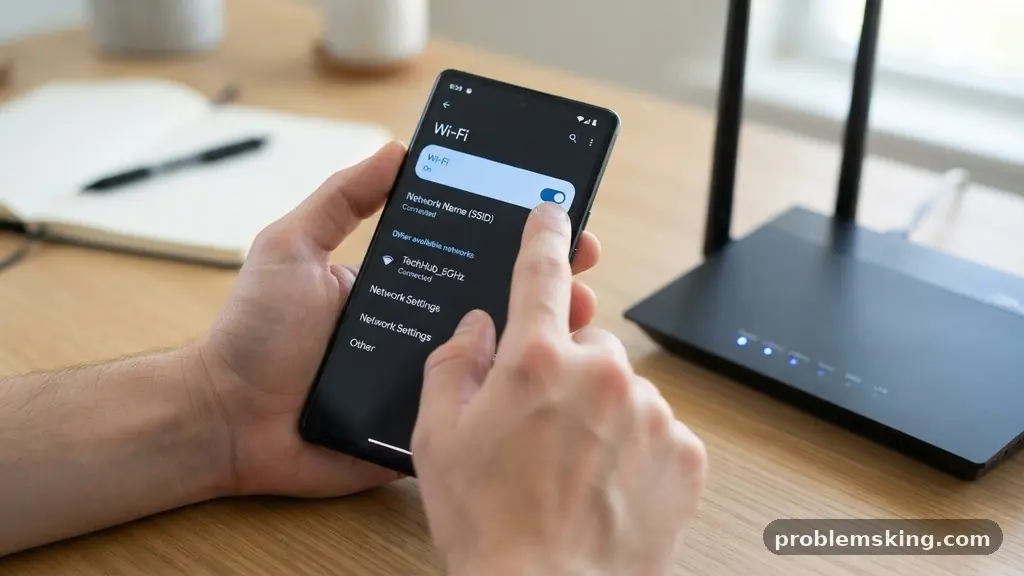
When you find that your phone keeps disconnecting from Wi-Fi even near the router, it is usually a sign of a conflict between your device’s software settings and the local environment. Most users assume the router is broken or the signal is weak, but the culprit is often a simple misconfiguration or an invisible layer of digital interference.
Fixing this requires looking past the physical distance and addressing how your hardware negotiates its connection. By examining factors like signal bands, power management, and internal network protocols, you can stabilize your connection and stop the constant drops that disrupt your daily tasks.
Immediate Fixes for Connection Stability
The most frequent cause for a phone dropping its connection is a conflict between the 2.4GHz and 5GHz frequency bands. Modern routers often use “band steering” to push devices to a faster 5GHz signal, but if your phone is at the edge of that band’s range, it may repeatedly drop.
You can often solve this by splitting your Wi-Fi networks into two distinct names, such as “Home_2.4” and “Home_5.” This allows you to manually force your device onto the 2.4GHz band, which offers better wall penetration and range stability.
Another quick, often-overlooked solution is checking for a pending firmware update on your router. Manufacturers frequently release patches to address specific bugs related to how routers handle handshake protocols with modern smartphones.
If your router software is outdated, it may struggle to maintain a stable DHCP lease, causing the phone to lose its IP address periodically. Log into your router’s administrative console to check for updates or enable automatic maintenance windows.
Finally, consider the impact of MAC address randomization, a privacy feature found in both iOS and Android. This feature occasionally causes authentication issues because the router sees a “new” device every time the address rotates, triggering a disconnect.
You can typically toggle this off for your home network within your phone’s Wi-Fi settings. By selecting your specific network and choosing “Device MAC” instead of “Randomized,” you provide the router with a consistent identifier that prevents unnecessary re-authentication.
Understanding Signal Interference and Channel Congestion
Even when you are standing inches from your router, invisible waves from other electronics can create massive signal interference. Appliances like microwaves, Bluetooth devices, and even smart home hubs operate on the same 2.4GHz frequency, creating a crowded airwave environment.
If your router is set to an auto-select channel, it might be jumping between channels to avoid this noise, causing your phone to drop the connection during each switch. Manually selecting a less congested channel—usually 1, 6, or 11 for 2.4GHz—can drastically improve your stability.
You can use a Wi-Fi analyzer app to visualize which channels in your home are the most crowded. These tools show you a graph of all nearby networks, allowing you to see exactly where the overlap is happening.
Once you identify a clear channel, head into your router’s wireless settings and lock it in. This prevents the router from constantly “channel hopping,” which is a leading cause of the symptoms you are experiencing.
Common Sources of Interference
- Microwave ovens running while the device is in use
- Bluetooth speakers and headphones active in the same room
- Baby monitors or wireless security cameras
- Neighboring Wi-Fi networks overlapping on the same channel
- Large metal objects or appliances obstructing the signal path
Power Management and Battery Settings
Smartphones are designed to be aggressive with power saving mode, which often involves cutting off background Wi-Fi scanning to conserve battery life. When your phone enters a deep sleep state, it might throttle the wireless radio, leading to a dropped connection if the router stops receiving a response.
If your phone keeps disconnecting from Wi-Fi even near the router, check your battery optimization settings. Ensure that your essential apps and the system’s Wi-Fi process are not being restricted by the OS.
On many Android devices, there is a specific toggle for “Wi-Fi Power Saving Mode” within the advanced settings. Disabling this forces the radio to run at full power, which may slightly increase battery drain but will keep the connection locked.
Similarly, on iPhones, ensure that “Low Power Mode” is turned off if you are experiencing connectivity drops during heavy usage. These power-saving protocols are meant to extend life, but they often prioritize battery longevity over constant network connectivity.
Addressing IP Address Conflicts
An IP address conflict occurs when two devices on your network are assigned the same address by the router’s DHCP server. This creates a collision where the network effectively “kicks” one device off to make room for the other.
Even if your phone is close to the router, it cannot maintain a connection if the router is constantly denying its requests for an IP. You can often resolve this by assigning a static IP address to your phone through your router’s settings.
By reserving a specific IP address for your phone’s MAC address, you ensure that no other device can claim it. This process is handled in the “DHCP Reservation” or “Static Lease” section of your router’s interface.
Once this is set, your phone will always request and receive the same address upon connecting, eliminating the handshake process that often leads to errors. It is a set-it-and-forget-it solution that provides a much higher level of reliability for your primary devices.
The Role of WPA3 and Security Protocols
Transitioning to newer security standards like WPA3 is generally recommended, but it can cause issues for older devices. If your phone is slightly older, it may struggle to perform the handshake required by WPA3-only networks.
This often results in the phone repeatedly dropping and trying to reconnect as it fails to authenticate properly. If you have recently upgraded your router’s security settings, try rolling them back to WPA2-AES to see if the connection stabilizes.
Furthermore, some older routers have trouble with the encryption overhead of newer security protocols. This creates a latency spike that your phone interprets as a lost connection.
If you are determined to use WPA3, ensure that your phone is running the latest operating system updates, as these often include the necessary drivers to handle the newer security handshakes. You can find more information about these standards at the Wi-Fi Alliance official resource page.
Comparing Connection Troubleshooting Methods
When your phone continues to drop, it helps to compare the effectiveness of different troubleshooting steps to identify the root cause systematically. The following table illustrates how different actions affect network stability.
| Action | Effectiveness | Primary Benefit |
|---|---|---|
| Restarting Router | High | Clears cache and forces new channel selection |
| Splitting 2.4/5GHz | Medium | Prevents constant band switching |
| Static IP Assignment | High | Stops IP address conflicts |
| Disabling Random MAC | Low/Medium | Prevents authentication loops |
| Updating Firmware | Medium | Fixes known hardware-software bugs |
Network Reset and Hardware Limitations
Sometimes the issue is not the router or the environment, but the internal network configuration of the phone itself. Over time, cached network settings and corrupted configuration files can accumulate, leading to erratic behavior.
Performing a full “Network Reset” on your phone clears all saved Wi-Fi networks, Bluetooth pairings, and VPN configurations. While this is a nuclear option, it is often the only way to clear out a persistent software glitch that prevents a stable connection.
Be aware that you will need to re-enter your Wi-Fi passwords and re-pair your Bluetooth devices after this process. It is a minor inconvenience that is well worth the potential fix if you have tried everything else.
If the phone still disconnects even after a factory reset of the network settings, you may be dealing with a hardware issue. The internal Wi-Fi antenna in your phone could be physically damaged or loose, which would require professional repair.
Wi-Fi Roaming and Mesh Systems
If you are using a mesh Wi-Fi system, your phone might be “roaming” too aggressively between different nodes. Even if you are near one node, the phone might decide that another node further away has a slightly better signal quality, triggering a handoff.
This handoff process involves dropping the current connection to establish a new one, which can appear as a disconnection. You can adjust the “Roaming Aggressiveness” or “Minimum RSSI” settings in your router’s advanced menu to prevent this behavior.
Setting a higher threshold for roaming forces your phone to stick with the current node until the signal is truly poor. This prevents the device from jumping between access points unnecessarily while you are stationary.
If you do not have access to these settings, try moving your router or mesh node slightly further away from your usual seating area. Sometimes, being too close to a node causes the signal to be “too loud,” confusing the phone’s radio and leading to the same drop-out symptoms.
Frequently Asked Questions
Why does my phone disconnect only when I am using the microwave?
Microwaves operate on the 2.4GHz frequency, which is the same as many older Wi-Fi networks. The leakage from the microwave oven creates significant signal noise that overwhelms your router’s signal, causing your phone to lose the connection until the microwave stops.
Is it better to use 2.4GHz or 5GHz for a stable phone connection?
While 5GHz is faster, 2.4GHz is generally more stable over distance and through walls. If you are experiencing frequent drops, try forcing your phone to connect to the 2.4GHz band to see if the connection becomes more consistent.
Can a VPN cause my phone to drop Wi-Fi?
Yes, a VPN can cause drops if the encrypted tunnel becomes unstable or if the server you are connected to is experiencing high latency. Try disabling your VPN to see if the Wi-Fi connection stabilizes.
How do I know if my router is the problem or my phone?
The easiest way to test this is to observe other devices on your network. If your laptop, tablet, and smart TV are all maintaining a perfect connection while only your phone drops, the issue is almost certainly with your phone’s settings or hardware.
What is a DHCP lease and why does it matter?
A DHCP lease is the amount of time your router allows a device to use a specific IP address before it has to ask for a renewal. If this lease is set for a very short duration, your phone might be forced to constantly re-request access, which can lead to temporary drops.
Conclusion
Resolving the issue of a phone that keeps disconnecting from Wi-Fi even near the router is a process of elimination. You should start by checking for interference, then move on to router settings like channel selection and band splitting. Most of the time, the fix is found in the software configuration of your device or the specific settings of your wireless access point.
By systematically addressing these factors, you can stop the frustration of constant drops and enjoy a stable, consistent internet experience. If you continue to face trouble after testing these solutions, consider contacting your internet service provider to see if there is an issue with your modem or the line coming into your home.