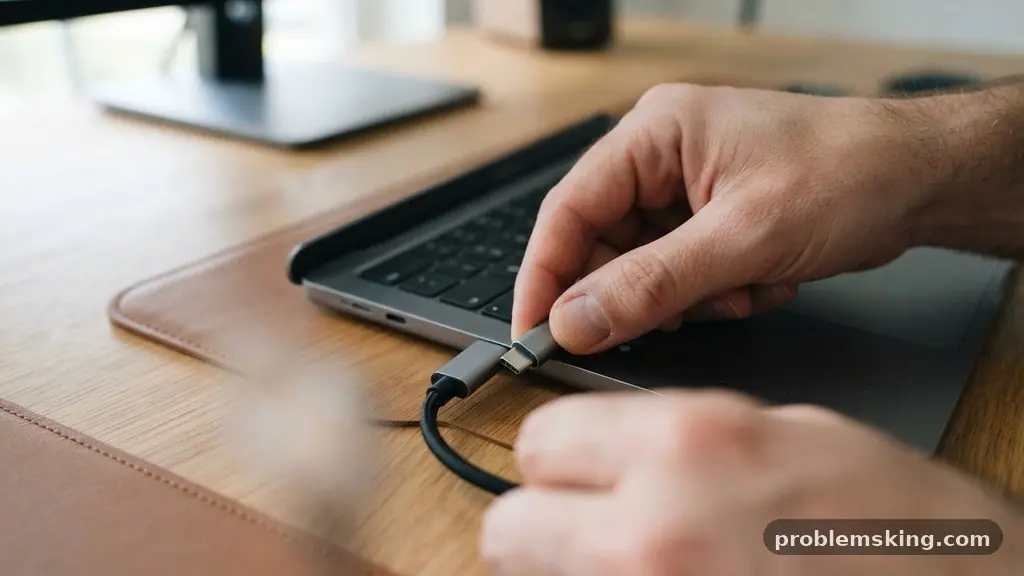
When you are troubleshooting a USB Device That Connects and Disconnects Repeatedly, the most common culprit is often a simple power delivery or physical connection issue. Most users find success by testing different ports, swapping cables, or adjusting specific power management settings within their operating system.
This guide provides a structured approach to identifying whether the problem lies with your hardware, your drivers, or the way your computer manages power for external peripherals. By systematically isolating each potential failure point, you can restore a stable connection and prevent your hardware from dropping out during critical tasks.
Testing Physical Connections and Cables
The first step in addressing a flickering USB connection is to rule out mechanical failure. USB cables are prone to internal wire fraying, especially near the connectors where they experience the most strain.
Try connecting your device using a different, known-working cable to see if the symptoms persist. If the connection stabilizes, you have identified a faulty cable rather than a software or motherboard issue.
Examine the USB port on your computer for debris, dust, or bent pins. Over time, lint or metallic particles can accumulate inside the port, preventing a clean electrical contact.
You can gently clear the port using compressed air, but avoid inserting metal objects that could cause a short circuit. If the port feels loose or the connector wobbles significantly, the port housing itself might be damaged.
Consider the difference between front and rear panel connectors on desktop computers. Front panel ports are connected to the motherboard via internal cables, which can introduce signal degradation or insufficient power delivery.
Always plug sensitive or high-power devices directly into the rear motherboard headers to bypass these internal extensions. This simple change often resolves intermittent connectivity for external hard drives and audio interfaces.
Adjusting Power Management Settings
Windows often attempts to conserve energy by turning off USB ports that it deems inactive, a feature known as USB selective suspend. This feature can be overly aggressive, causing the system to cut power to your device even while it is in use.
To disable this, you must navigate to your power plan settings in the Control Panel. Under the advanced power settings, look for the USB settings category and disable the selective suspend option.
You should also check the power management settings specifically for your USB root hub within the Device Manager. Right-click on your hub, select properties, and look for a tab labeled Power Management.
If the box allowing the computer to turn off the device to save power is checked, uncheck it. This forces the port to remain powered regardless of the current system load.
This adjustment is particularly effective for users who experience drops during data transfers or while using high-bandwidth devices. When the computer thinks a device is idle because it isn’t sending a constant stream of data, it might “sleep” the port.
By disabling these automated power-saving features, you ensure a constant current is maintained. This is a vital step when troubleshooting a USB Device That Connects and Disconnects Repeatedly.
Updating Chipset and USB Drivers
Outdated or corrupted drivers can cause the operating system to misinterpret signals from your hardware. The chipset drivers act as the foundation for communication between your CPU and the USB controllers.
Visit your computer manufacturer’s website to download the latest chipset and controller drivers specific to your model. Installing these updates ensures that your OS can correctly manage peripheral connectivity and power distribution.
You can also use the Device Manager to uninstall and reinstall your USB controllers. When you uninstall a controller and restart your machine, Windows will automatically detect the hardware and reinstall a fresh set of drivers.
This process often clears out residual configuration errors that manual updates might miss. It is a clean way to reset the communication layer without deep-diving into registry files.
If you are unsure where to find the correct software, you can consult the official documentation provided by your hardware vendor. For more information on maintaining your system’s interface integrity, you can review the Microsoft USB support documentation. Keeping your system software current is a primary defense against intermittent hardware behavior.
Evaluating Power Supply Limitations
A failing power supply unit (PSU) or one that is under-powered can lead to unstable voltage across your motherboard headers. USB ports require a specific amount of voltage to maintain a stable link with high-draw peripherals like external SSDs or webcams.
If your PSU is struggling to provide enough current, the USB ports are often the first to experience drops. This is especially common if you have added new components to your system recently.
Calculate your total power consumption to ensure your PSU has enough overhead to support all connected devices. If you are running multiple high-power USB devices through a non-powered hub, you are likely exceeding the port’s capacity.
Switch to a powered USB hub that has its own AC adapter to relieve the burden on your computer’s internal power delivery system. This ensures that each device gets the electricity it requires without drawing from the motherboard’s limited rails.
Watch for signs of system-wide instability, such as random reboots or screen flickering. If your USB issues coincide with these other symptoms, the PSU is likely the root cause.
Swapping in a higher-wattage power supply is a significant hardware change but often necessary for complex setups. Troubleshooting a USB Device That Connects and Disconnects Repeatedly often requires looking beyond the port itself and toward the system’s heart.
Addressing BIOS and Firmware Issues
Sometimes, the motherboard’s basic input/output system (BIOS) contains bugs that affect how the hardware handles USB initialization. A BIOS update can resolve compatibility issues between your motherboard and newer USB 3.0 or 3.1 peripherals.
Check your motherboard manufacturer’s support page for recent updates, but follow the installation instructions carefully to avoid bricking your device. Always ensure your computer is plugged into an uninterrupted power source during this process.
Firmware updates for the external device itself can also resolve connection stability. Many modern peripherals have internal processors that require code updates to communicate properly with modern operating systems.
Check the manufacturer’s website for any available firmware patches for your specific device model. These updates can fix timing issues that cause the device to disconnect when it misses a handshake signal.
Be methodical when applying these updates. Do not install multiple firmware or BIOS updates at once, as this makes it impossible to identify which change fixed the problem.
If a specific version of a driver or BIOS is known to be unstable, look for community forums where other users might have reported similar findings. Stability is often a game of finding the right version balance between your OS and your hardware.
Identifying Cable Interference and ESD
Cable interference occurs when high-frequency signals from nearby power cords or wireless equipment disrupt the data flow in a USB cable. If your USB cable is unshielded and runs parallel to a power cable, it may pick up electromagnetic noise.
Try rerouting your cables to keep data lines away from AC power sources. Using high-quality, shielded USB cables can also significantly reduce the impact of this interference.
Electrostatic discharge (ESD) can cause sudden, temporary disconnects if your environment is particularly dry or if your computer case is not properly grounded. A static spark near the USB port can cause the controller to reset instantly for safety reasons.
Ensure your computer chassis is properly grounded and avoid touching the metal connectors of your cables after walking across carpeted floors. Using an anti-static mat or simply touching a grounded metal object before handling your hardware can mitigate this risk.
Managing the physical environment of your workstation is an often overlooked aspect of hardware maintenance. Keeping your cables organized and away from potential sources of interference ensures that the signal remains clean. If you notice the disconnects happen more frequently when you move or touch the cables, the issue is almost certainly physical interference or a failing connector.
Common Troubleshooting Scenarios
To help you narrow down your search, the following table compares common symptoms with their most likely root causes. Use this as a reference while you perform your diagnostics.
| Symptom | Primary Suspect | Recommended Action |
|---|---|---|
| Drops only during large file transfers | Power Management / Cable | Disable selective suspend; use shorter cable |
| Drops when moving the computer case | Physical Port / Connection | Check motherboard headers and rear ports |
| Drops immediately upon system boot | Driver / BIOS | Update chipset drivers and BIOS |
| Drops across multiple different computers | The Peripheral Device | Test with a different device; replace peripheral |
| Drops when other USB devices are plugged in | Power Supply Unit | Use a powered USB hub |
Frequently Asked Questions
Why does my device disconnect when I plug in another USB accessory?
When you add more devices, you increase the power draw on the internal USB controller. If the collective power demand exceeds the port’s rated capacity, the controller will shut down to prevent damage. Moving to a powered hub provides an external power source that doesn’t rely on the motherboard’s limited rails.
Is it possible that my USB port is physically dead?
Yes, ports can fail due to oxidation, broken solder joints, or internal pin damage. If a port fails to recognize any device you plug into it, while other ports work fine, the port itself is likely broken. You should avoid using that port to prevent potential short circuits that could damage other components.
Do I really need to update my BIOS for a USB issue?
In most cases, you don’t, but it can be a last resort if you have ruled out drivers and hardware. Some motherboard revisions have known issues with USB initialization that are only fixed through a firmware update. If the manufacturer specifically lists USB stability fixes in their release notes, it is worth the effort.
Can a software virus cause USB disconnects?
While rare, certain malware or corrupted system files can interfere with the hardware and devices troubleshooter or the driver stack. If you suspect software corruption, running a system file checker scan can help identify and replace missing or broken system components. This is rarely the first thing you should check, but it is a valid step if all hardware tests pass.
How do I know if the device itself is faulty?
The best way to isolate the device is to test it on a completely different computer. If the device keeps connecting and disconnecting on a different machine, the internal controller of the device is likely failing. In this case, no amount of driver or power setting adjustment will fix the issue, and you should consider a warranty claim or replacement.
Conclusion
Troubleshooting a USB Device That Connects and Disconnects Repeatedly requires a balanced approach that looks at power, data, and physical integrity. Start with the simplest solutions, such as switching ports and cables, before moving into more technical areas like power management and driver updates. By isolating each variable, you can pinpoint whether the issue stems from your PC’s power delivery, the operating system’s configuration, or the peripheral hardware itself.
Most of these issues are easily resolved with minor adjustments, ensuring that your devices remain stable and reliable. Take your time during the process, and if you find yourself stuck, focus on the power supply and physical connection quality, as these are the most common points of failure in modern computing environments.