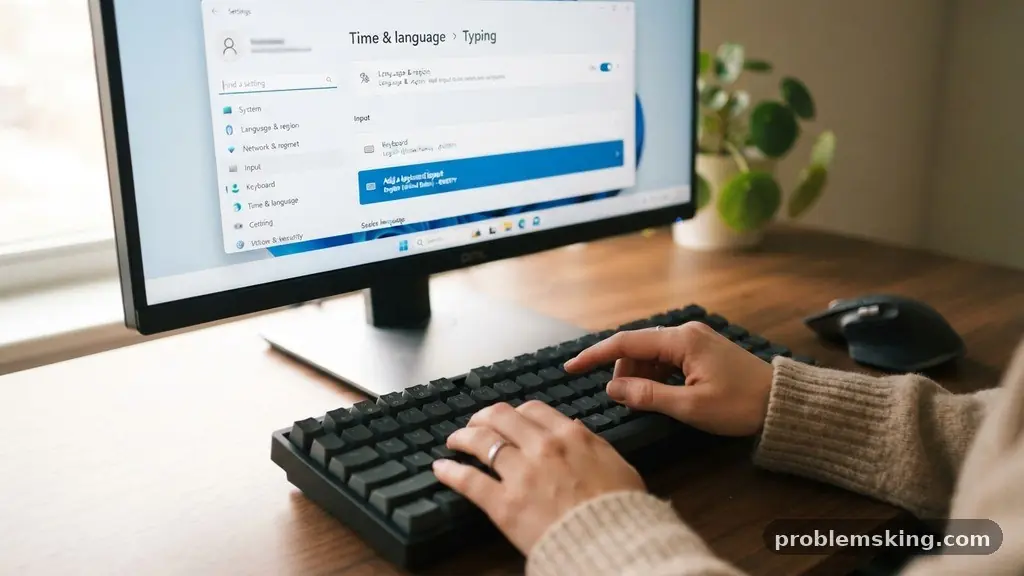
When your computer starts outputting symbols that don’t match the keys you are pressing, it is usually a sign of a simple software mismatch rather than a broken device. Fixing a Keyboard That Types Different Characters Than Expected often involves checking your operating system’s regional settings or verifying that your input language hasn’t been accidentally toggled.
Most users can resolve this issue in under five minutes by adjusting a few configuration menus. This article provides a clear path to troubleshooting these common character mapping errors, helping you get back to typing accurately without needing to replace your hardware.
Checking Your Input Language Settings
The most frequent cause for incorrect characters appearing on your screen is an inadvertent change to your active keyboard language. Windows and macOS allow users to switch between different regional layouts using simple keyboard shortcuts, which are often triggered by mistake. If your computer thinks you are using a United Kingdom layout while you are typing on a United States keyboard, symbols like the “@” and the quotation marks will frequently swap places.
You should first check the taskbar or menu bar to see which language is currently selected. In Windows, this is usually located near the clock in the bottom right corner of the screen.
If you see “ENG (UK)” instead of “ENG (US),” simply click the icon and select your preferred regional profile. This change is often instantaneous and should restore your standard character mapping immediately.
If you find that your settings are correct but the issue persists, try removing the secondary language pack entirely. Sometimes, Windows will cycle through installed languages if a specific key combination is pressed repeatedly. By navigating to your system’s Time & Language settings, you can remove any layouts you do not use to prevent accidental switching in the future.
Understanding Keyboard Layout Mismatches
A keyboard layout defines how the physical keys on your board map to the digital characters processed by your computer. There are several international standards, such as QWERTY, AZERTY, and QWERTZ, each designed for different linguistic needs. When you encounter a situation where the letter “Z” appears when you press “Y,” you are likely dealing with a layout mismatch between your hardware and your software settings.
This often happens when a user inadvertently switches from a standard US layout to a French or German configuration. While the physical keys remain stationary, the computer interprets the electrical signal from that key as a different character based on the active software profile. You can verify your current layout by opening a simple text editor and typing a few keys to see if the output matches your physical keycaps.
If you are using a laptop, check if the manufacturer has included any specialized software that overrides standard regional settings. Some gaming laptops come with proprietary tools that allow for custom key remapping or macro profiles. Ensure that these utilities are not running in a mode that reassigns your standard character keys to alternate functions or symbols.
Managing Regional Settings and Character Mapping
Your regional settings influence more than just your keyboard; they dictate how your system handles date formats, currency symbols, and text encoding. If your regional settings are misconfigured, your computer might default to a locale that uses a different character set than the one you are accustomed to. For advanced troubleshooting, visit the Microsoft Support Center to review official documentation on managing local input methods.
When you modify these settings, ensure that both the “Display Language” and the “Preferred Language” are set to your specific region. Sometimes, a mismatch between these two can cause the system to behave unpredictably during text input. It is also helpful to restart your machine after making these changes to ensure the new character mapping is correctly loaded into the kernel and background services.
If you frequently work with multiple languages, you might want to keep two layouts installed but use a specific, non-obvious shortcut to switch between them. This prevents the “fat-finger” syndrome where you accidentally trigger a language swap while trying to use a command like Alt+Shift or Windows+Space. Consistency in these settings is the best way to prevent future input errors.
Troubleshooting Hardware and Peripheral Connectivity
Sometimes the issue is not with the software, but with the physical connection between your keyboard and your computer. A faulty USB port or a damaged cable can cause data transmission errors that lead to the computer misinterpreting key presses. If your keyboard is wireless, low battery levels can occasionally cause the signal to drop or send incorrect scan codes to the receiver.
Try plugging your keyboard into a different USB port on your machine, preferably one directly on the motherboard rather than a front-panel connector or a hub. If you are using a wireless peripheral, ensure there is no interference from other devices like Bluetooth speakers or Wi-Fi routers. A simple hardware reset, which often involves unplugging the device for thirty seconds, can clear out temporary glitches in the keyboard firmware.
Inspect your keyboard for any physical debris or stuck keys that might be holding down a modifier key like Shift, Ctrl, or Alt. If a key is physically stuck or dirty, the computer may think you are holding it down, which changes the output of every other key you press. A quick cleaning with compressed air can often resolve these types of hardware-induced mapping errors.
Examining Device Manager and Driver Updates
Your computer relies on specific driver software to translate the electrical signals from your keyboard into the characters you see on your screen. If these drivers become corrupted or outdated, they can misinterpret the signals being sent. You can check the status of your drivers by opening the Device Manager in Windows.
Look for the “Keyboards” section and expand it to see your connected devices. If you see a yellow exclamation mark next to your keyboard, it indicates that the system is having trouble communicating with the hardware. You can right-click the device and select “Update driver” to let the system search for the latest version, or choose “Uninstall device” and restart your computer to force a fresh install.
Updating your drivers is a safe and effective way to fix a Keyboard That Types Different Characters Than Expected when the problem is persistent across different applications. Manufacturers periodically release patches to improve compatibility with newer operating system updates. Keeping your system firmware and drivers current ensures that your peripheral devices function exactly as the developers intended.
The Impact of Sticky Keys and Accessibility Features
Accessibility settings are powerful tools, but they can sometimes interfere with standard typing if they are enabled by accident. “Sticky Keys” is a feature designed to help users who have difficulty pressing multiple keys at once by allowing modifier keys like Shift to remain active until a second key is pressed. If this is toggled on, your keyboard might seem to be typing capital letters or symbols even when you aren’t holding down the modifier.
You can check if these features are active by looking at your system’s Ease of Access or Accessibility settings. If you find that Sticky Keys or Filter Keys are enabled, turn them off to see if your keyboard returns to normal operation. These features are often triggered by pressing the Shift key five times in a row, which is a common occurrence during intense gaming or fast typing sessions.
Disabling these shortcuts is recommended if you do not have a specific need for them. By preventing the system from automatically enabling these accessibility modes, you reduce the likelihood of your keyboard unexpectedly changing its behavior. This is a common, yet often overlooked, solution for users who find their character output suddenly shifting to symbols or uppercase letters.
Comparison of Common Keyboard Issues
It is helpful to categorize the symptoms you are experiencing to narrow down the potential cause. The table below outlines how different types of keyboard errors manifest and the most likely solutions to address them effectively.
| Symptom | Likely Cause | Recommended Fix |
|---|---|---|
| Symbols swapped (e.g., @ and “) | Incorrect Language Layout | Change Language Settings |
| Letters typing numbers or symbols | NumLock or Fn Key active | Toggle NumLock or Fn key |
| Delayed or missed characters | Driver or Connectivity issue | Update driver or check USB |
| Everything is capitalized | Sticky Keys enabled | Disable Accessibility features |
Each of these issues requires a different approach to resolve. By identifying whether your problem is software-related or a simple toggle error, you can save significant time. Always start with the simplest solution, such as checking the NumLock key, before moving on to more complex tasks like driver reinstallation.
FAQ: Resolving Keyboard Input Problems
Why does my laptop keyboard type numbers instead of letters?
This usually happens because the NumLock key has been activated, turning a section of your letter keys into a numeric keypad. Look for a key labeled “NumLock” or “NumLk” and press it once; this should return your keys to their standard alphabetical function.
How do I know if I have the wrong keyboard language?
If your keyboard is typing the wrong symbols in place of punctuation marks, you likely have the wrong regional layout selected. Check the language indicator in your taskbar and ensure it matches the physical layout of your keyboard, such as “English (United States).”
Can a virus cause my keyboard to type weird characters?
While rare, some forms of malware can attempt to remap keys or log keystrokes. If you have ruled out language settings and driver issues, run a full system scan with reputable security software to ensure your computer is free from malicious threats.
What should I do if my keyboard is physically broken?
If you have tested your keyboard on another computer and it still produces incorrect characters, the internal membrane or circuit board is likely damaged. In this case, there is no software fix, and you will need to replace the physical keyboard unit.
Do keyboard shortcuts change my settings permanently?
Many keyboard shortcuts are designed for temporary toggling, but some can change your settings until you manually revert them. If you suspect a shortcut changed your layout, use the same key combination again to see if it reverts the change, or check your settings menu to confirm.
Conclusion
Resolving issues with your typing input is a manageable process that rarely requires professional intervention. By systematically checking your language settings, verifying your drivers, and ensuring that no accessibility features are interfering with your workflow, you can quickly restore your equipment to its proper state. Most instances of fixing a Keyboard That Types Different Characters Than Expected stem from simple configuration errors that are easily corrected within your operating system’s control panel.
If you find that your hardware continues to behave erratically after following these steps, consider testing the device on a different machine to rule out a deep hardware failure. Should the problem persist elsewhere, a replacement is often the most efficient path forward. Remember to keep your software updated and monitor your language settings to ensure a smooth, error-free typing experience every time you sit down to work.